

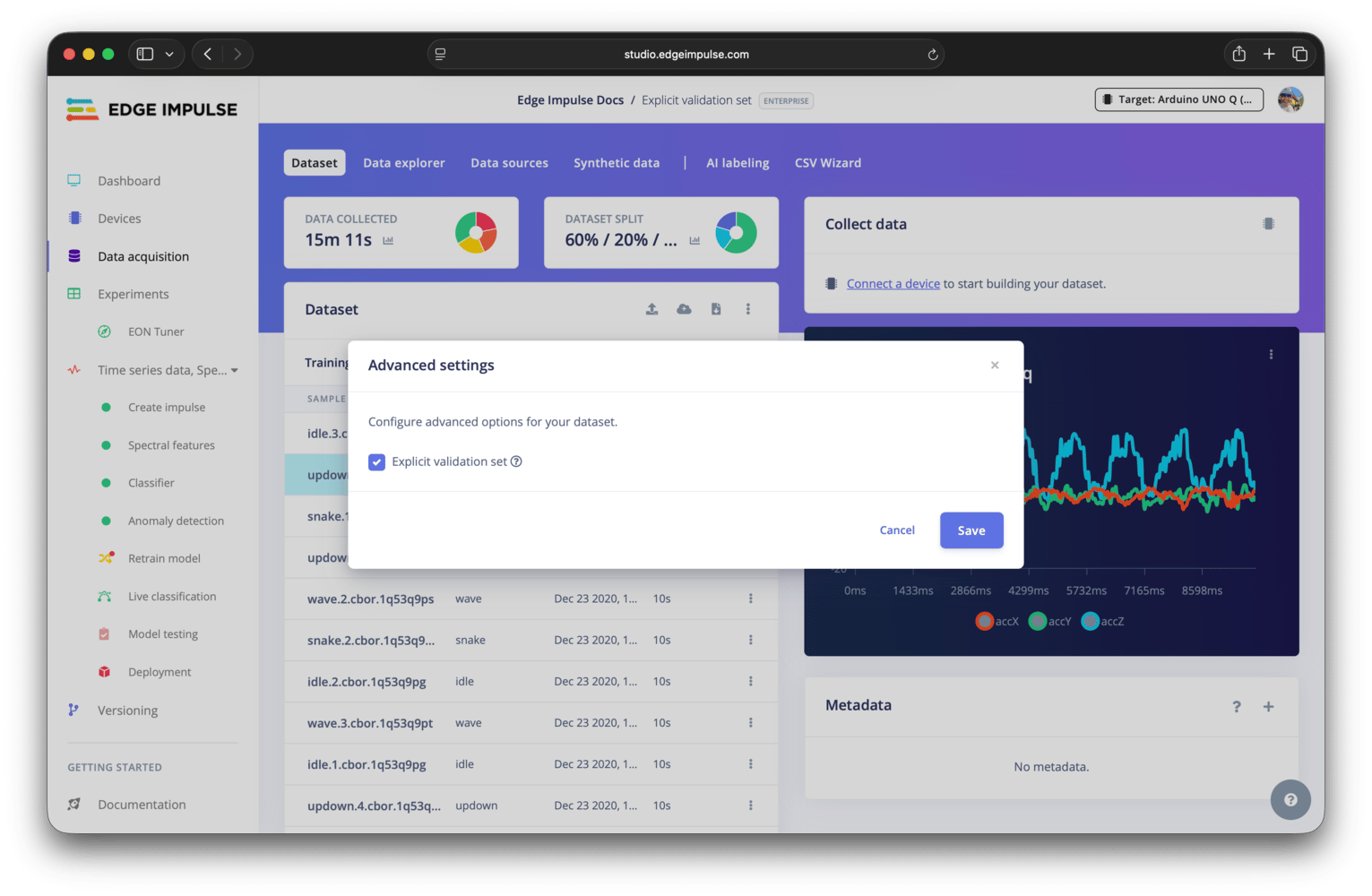
Advanced settings modal
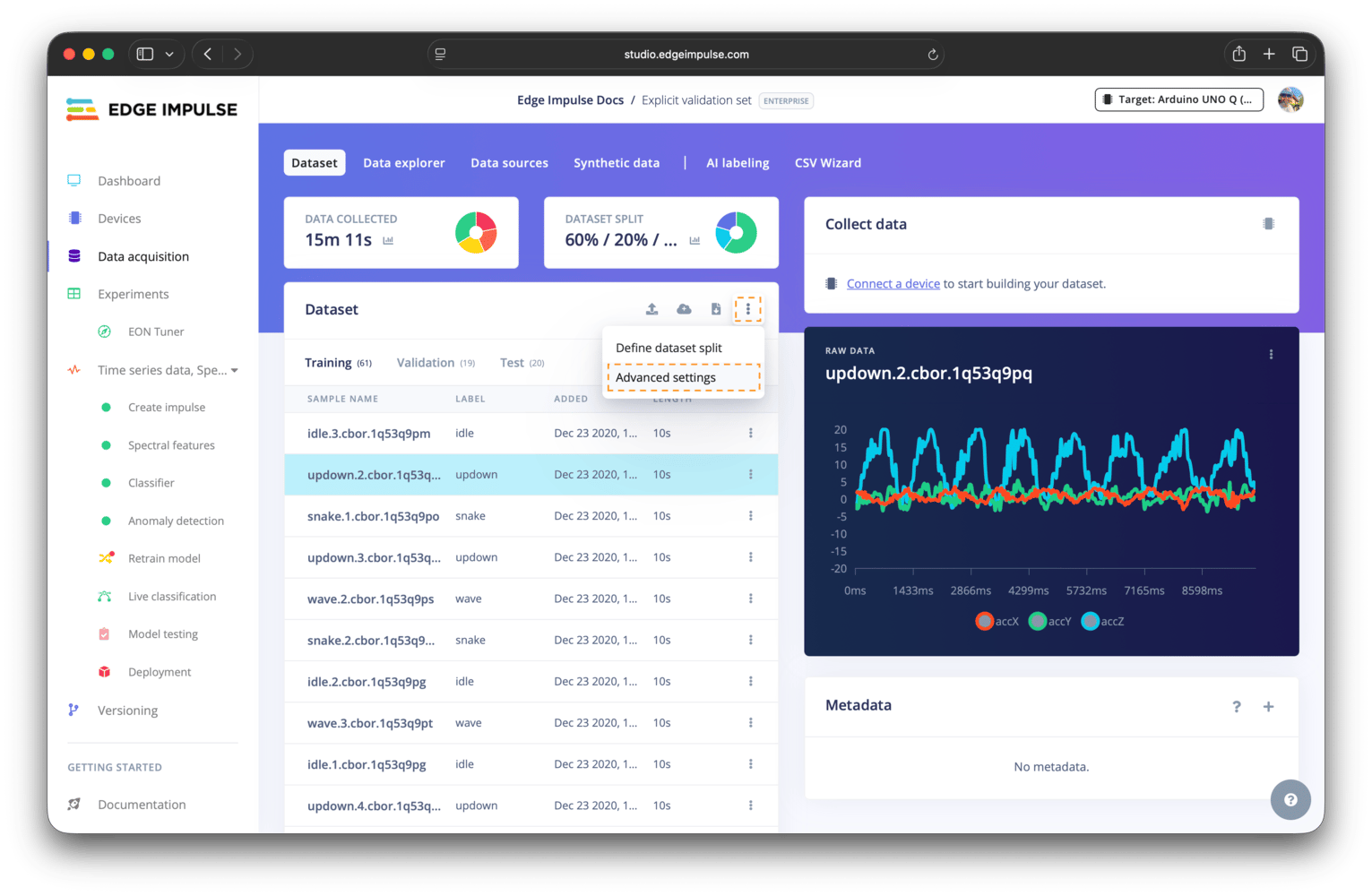
Advanced settings menu item
Explicit validation set
Why a validation set exists
Your data splits into three sets. The training set is what the model learns from. The validation set is held back and scored after every epoch, so you can watch for overfitting while training. The test set is used only once training is done, by model testing, to estimate real-world performance. Validation and test stay separate because you make decisions based on the validation score, such as when to stop training. Data you’ve made decisions on is no longer unseen, which is why the test set stays untouched until the end.What the setting changes
By default, Edge Impulse automatically splits your training data into the training and validation sets. Enabling the explicit validation set setting allows you to specify the percentage of data to use for your validation set, explore what samples are contained in the set, and move samples to/from the validation set from/to your training or test sets.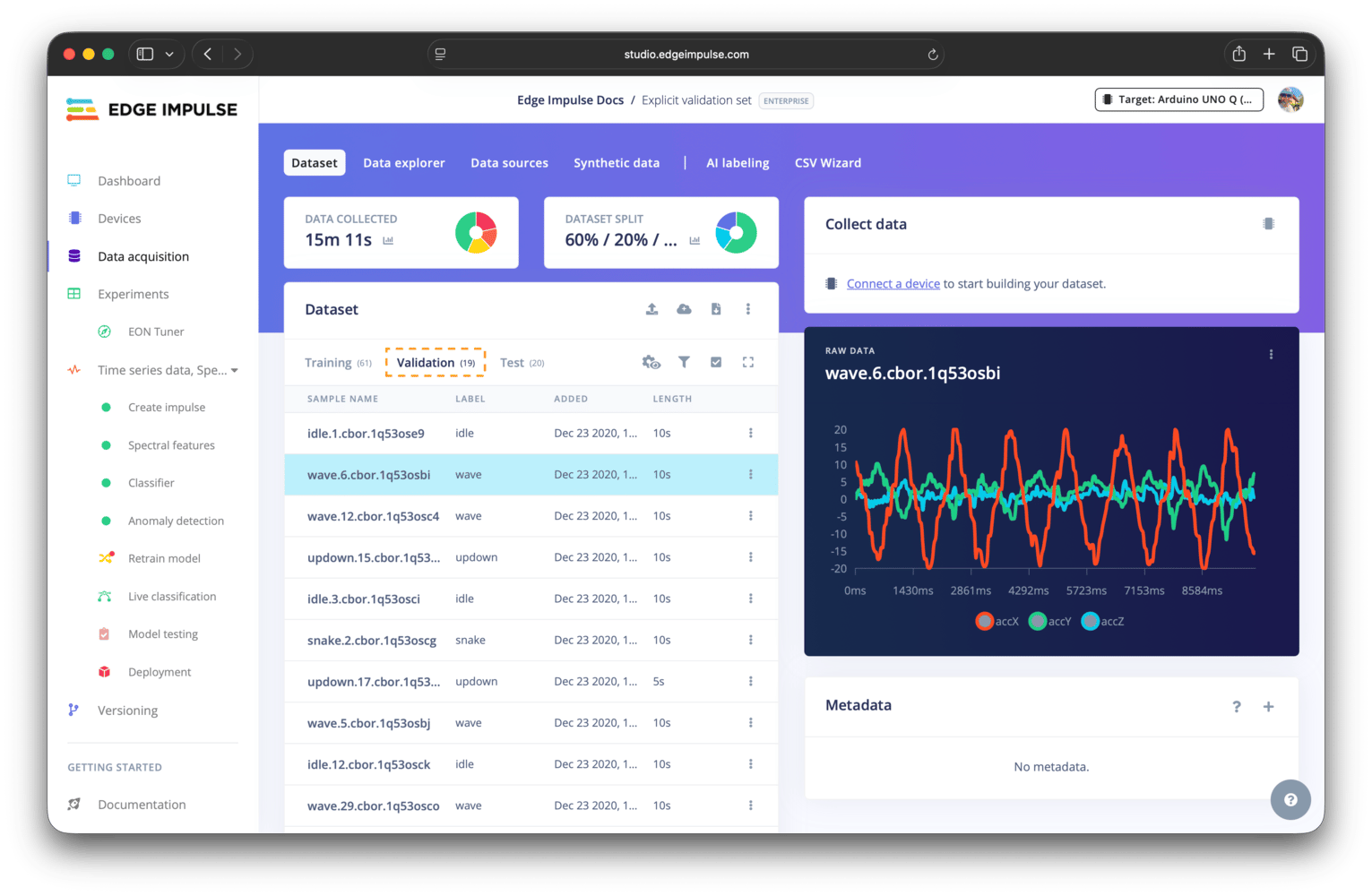
Validation set samples after enabling explicit validation set
When to enable it
Turn this on when the validation set’s composition affects whether you can trust the score:- Data is grouped by subject, device, or session, and a group must be kept out of training entirely to avoid leakage. Pair this with the grouping controls in Define dataset split.
- You are comparing experiments and want every impulse validated against the same samples.
- Your dataset is small or imbalanced, so an automatically drawn validation set may not contain enough examples of a rare class.
explicitValidationEnabled on Update project.
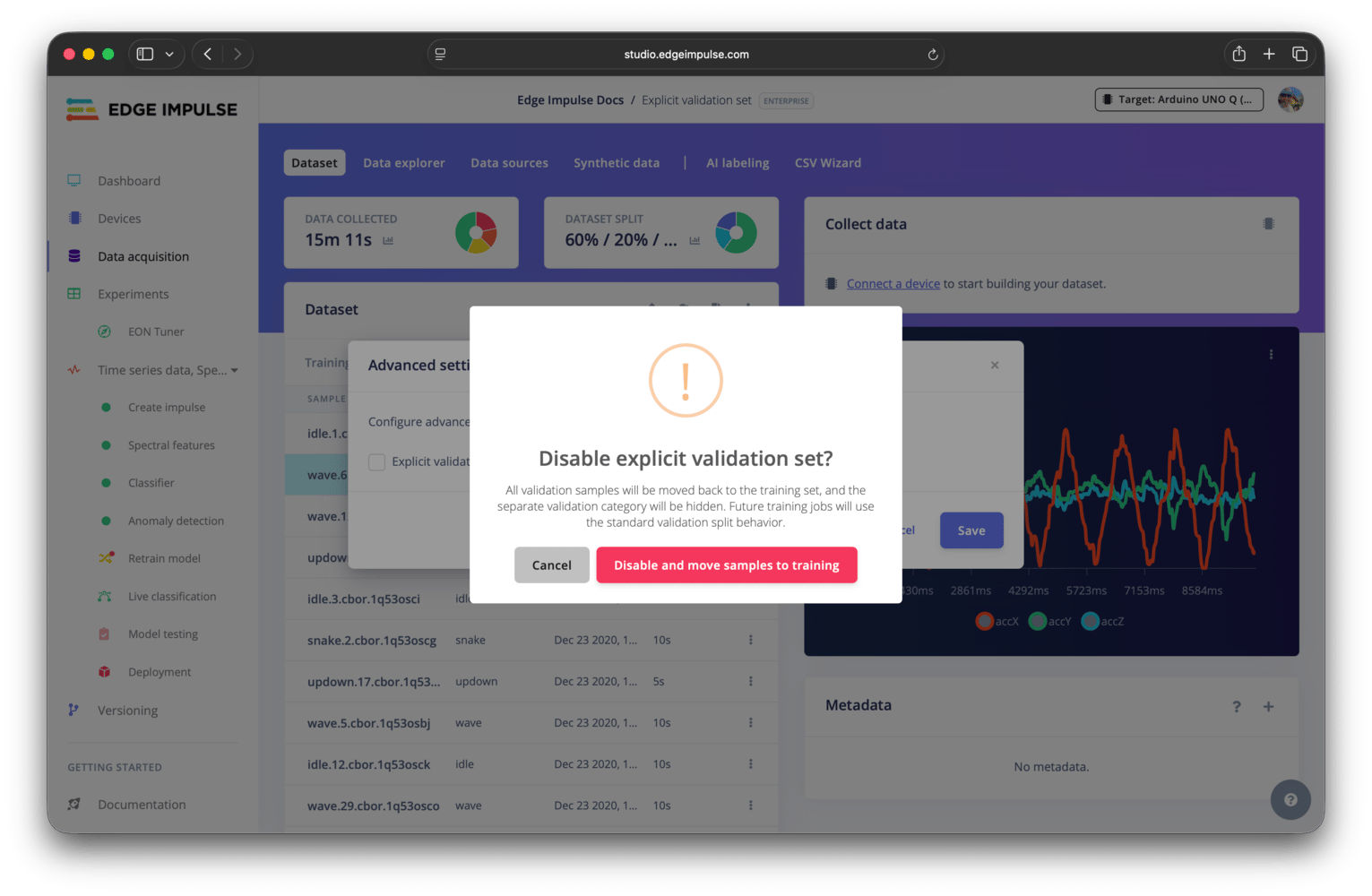
Disable explicit validation set warning