

What is shared and what is not
Each impulse has its own ID and its own name. One impulse is active at a time: the impulse selector in the left navigation bar controls which one, and pages such as impulse design, feature generation, training, live classification, model testing, and deployment all act on the impulse that is currently selected. You can also click an impulse in the experiments table to switch to it.
This means you can, for example, run FOMO and MobileNet SSD against the same dataset at the same time: add two impulses, configure one with each learning block, train both, and compare them in the table.
Creating an experiment
There are three ways to add an impulse to a project:- Start from an empty impulse. Use the impulse selector in the left navigation bar to create a new impulse, then add input, processing, and learning blocks as you would for the first impulse in a project.
- Clone an existing impulse. Cloning is the fastest way to change one variable at a time. You can copy just the structure (the blocks and their configuration, with no features or trained models), or clone it completely, which also brings over the generated features and trained model so the new impulse starts in the same state as the original.
- Promote an EON Tuner trial. The EON Tuner searches a parameter space for you. When a trial looks promising, click + Add on that trial to add it to your list of experiments as a full impulse that you can then tune by hand.
Comparing experiments
The experiments table lists every impulse in the project as a row, with the metrics and configuration values as columns. Columns are grouped by where the value comes from:- Impulse metrics: results for the impulse as a whole, such as accuracy and estimated on-device latency and memory.
- Input, processing, learning, and post-processing block configuration: the parameters each block was configured with, so you can see which setting produced which result.
- Learning block metrics: per-block training and validation results.
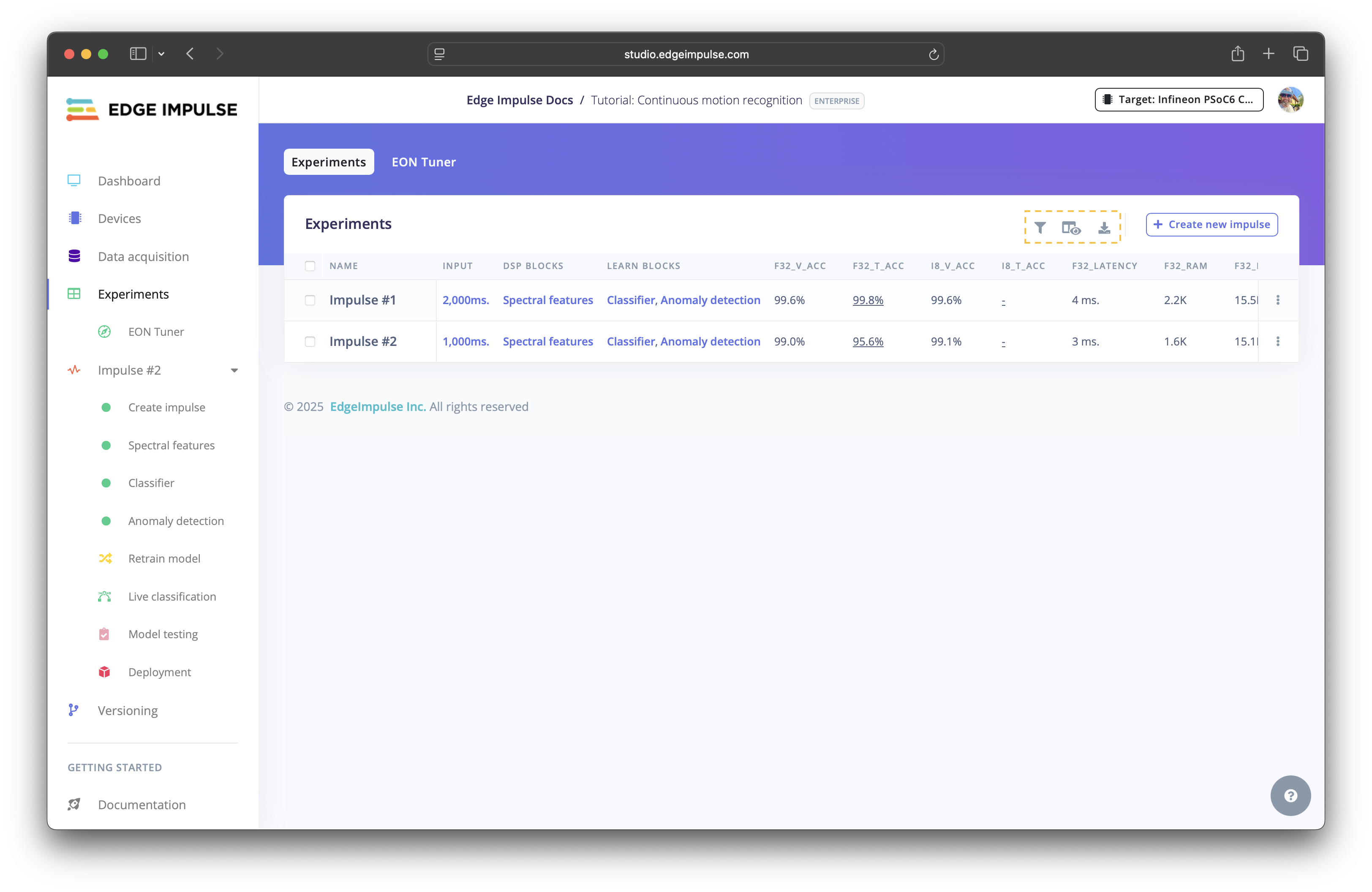
Experiments view highlighting table customization and download options
When you compare impulses, check the on-device performance columns as well as accuracy. A more accurate impulse might not fit the memory or latency budget of your target device. Set your target device in Dashboard so the latency and memory estimates reflect the hardware you are deploying to.
Experiments and the EON Tuner
You can use experiments and the EON Tuner together.
A common workflow is to run the EON Tuner first to narrow down the search space, add the most promising trials as impulses, then refine those by hand and compare them in the experiments table.
Working with experiments programmatically
Everything on the Experiments page is available through the Edge Impulse Studio API, which is useful for scripted sweeps and for reporting results into an external experiment tracker. Most impulse endpoints take an optionalimpulseId parameter; when you omit it, they operate on the project’s default impulse.
The same operations are available through the Python API bindings and the JavaScript API bindings.