

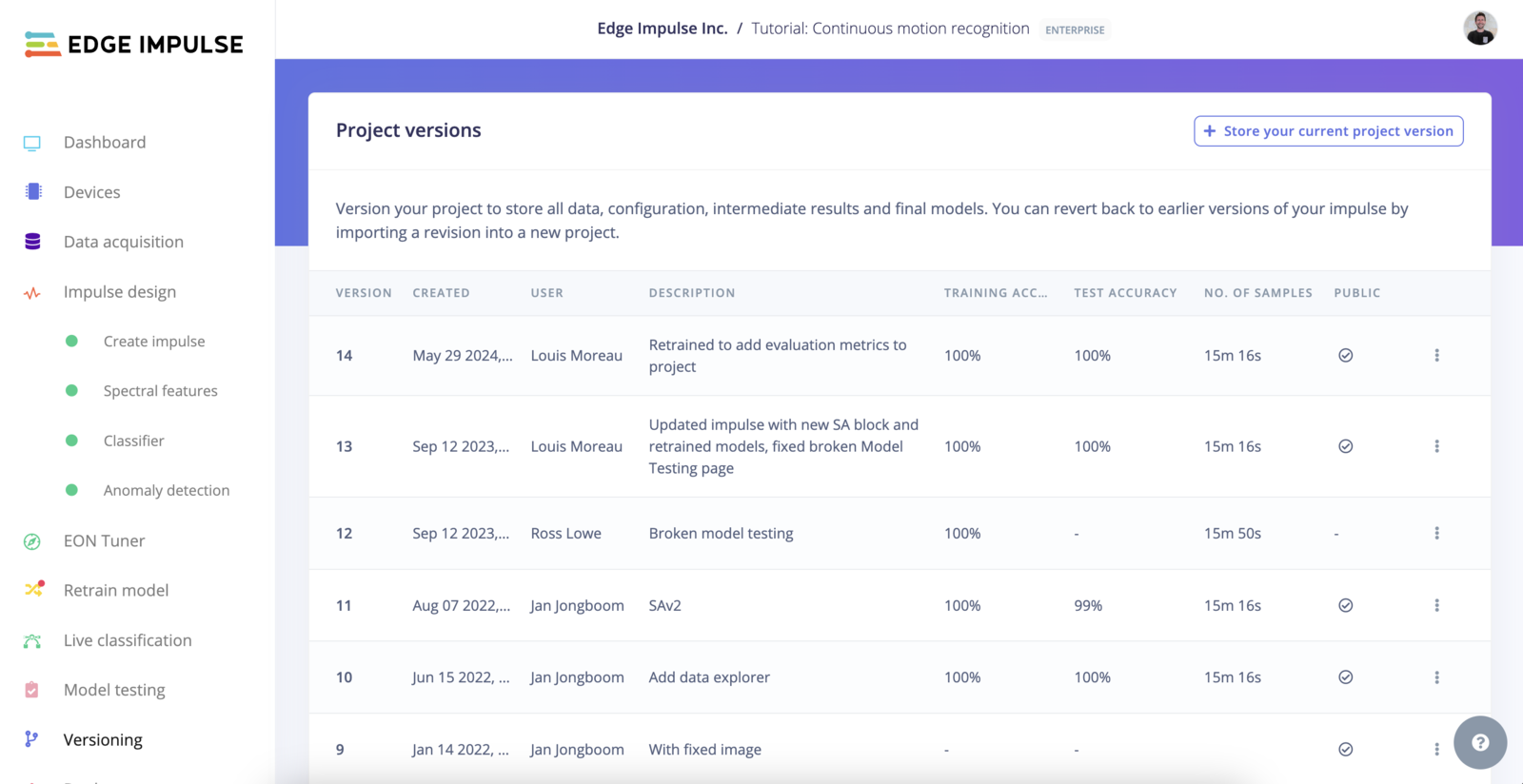
The Versions page listing stored project versions.
What a version captures
Each version is a full copy of the project, stored separately from the project itself. By default, the copy goes to storage that Edge Impulse hosts. Projects in an enterprise organization can store versions in one of the organization’s storage buckets instead, so the copies stay in your own cloud account. List versions returns the bucket and path of each version. Each stored version records:- The version number and description you gave it.
- Who created it and when.
- The training accuracy, measured on the validation set, and the test accuracy, measured on the test set. Object detection projects record mean average precision at IoU 0.5 instead.
- Which impulse those metrics came from, if the project has more than one experiment.
- The total number of data samples.
- Whether the version is public or private.
Creating a version
- Open the Versions tab in the left-hand menu of your project.
-
Click Store your current project version.
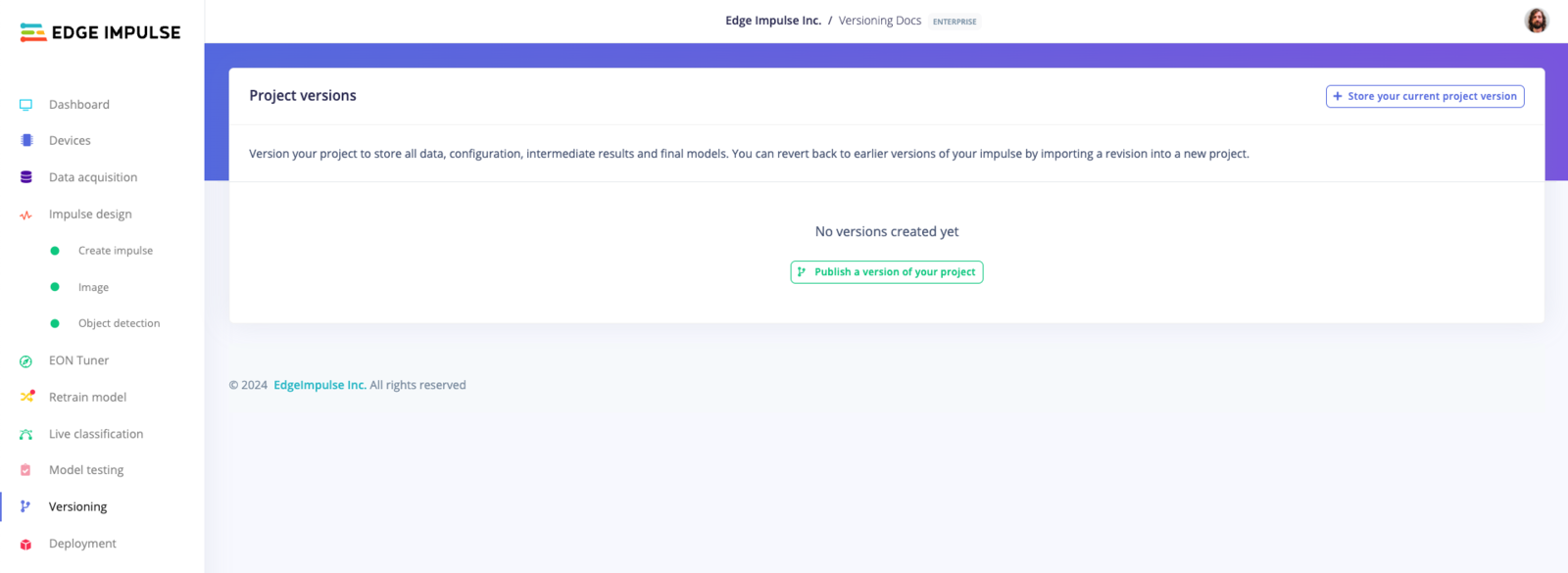
Storing the current project version.
-
Write a description. Record what changed and why, so you can tell versions apart later.
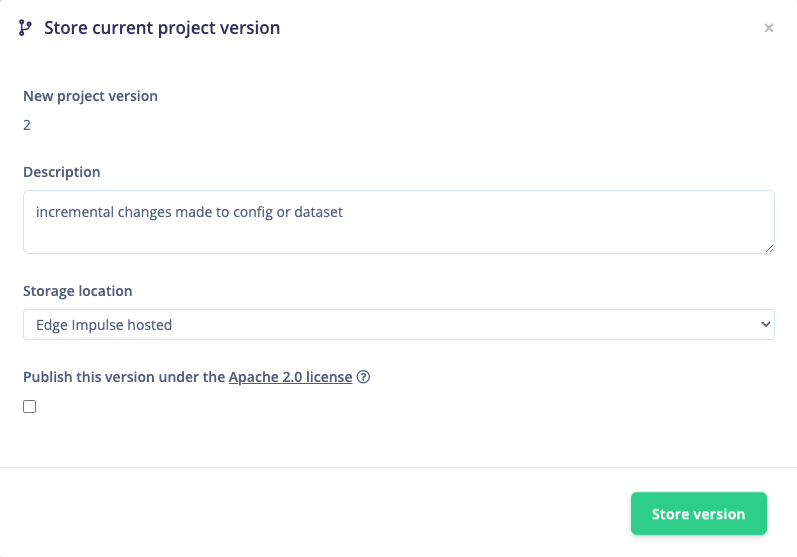
Describing the version before saving it.
- Decide whether to publish it. Checking Publish this version under the Apache 2.0 license makes the version public, which is covered below.
- Click Save. Versioning runs as a job, so large datasets take a while to copy.
If your project uses a custom learning block pushed through Bring Your Own Model, the Studio warns you before publishing, because that block becomes available to anyone who clones the public version.
Restoring a version
Select a version from the list and click Revert to this version.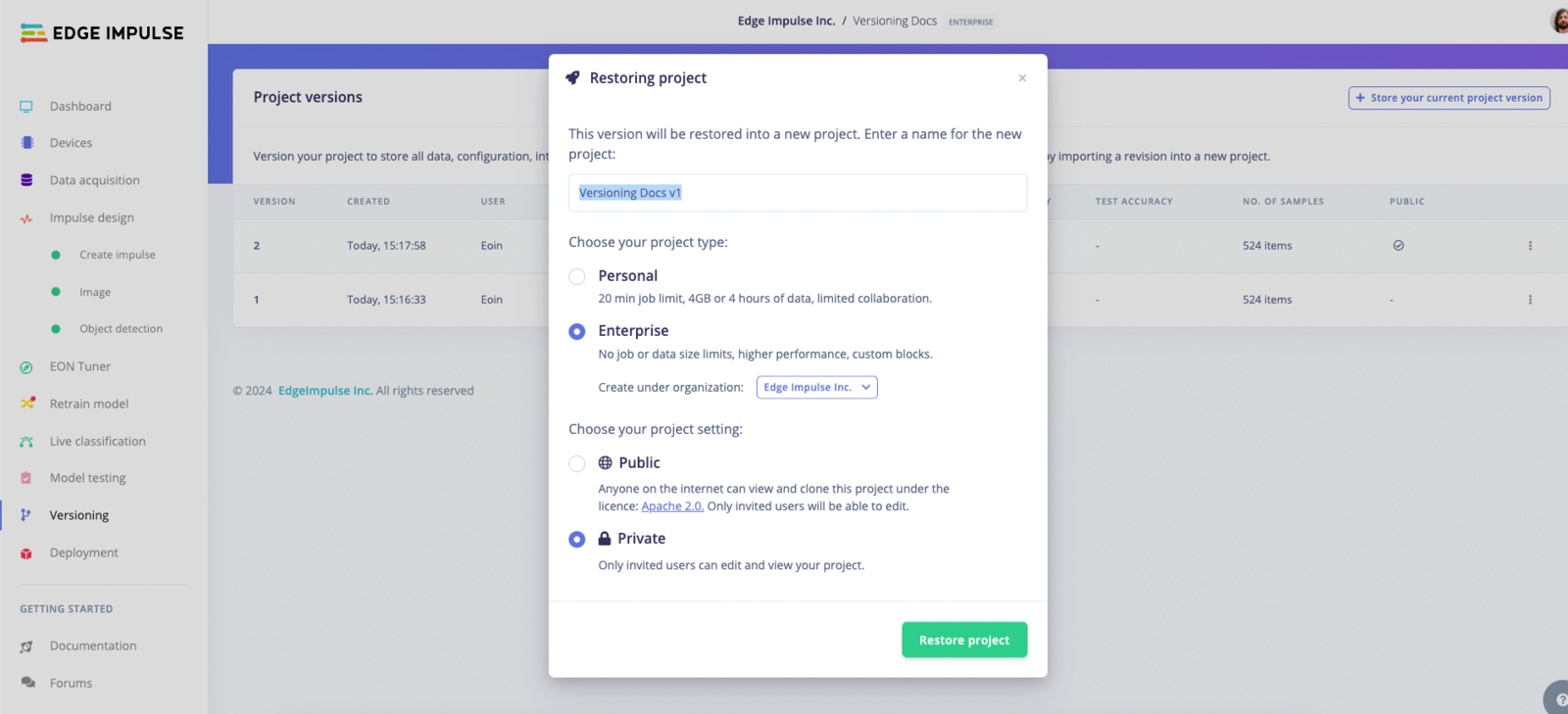
Restoring a stored version.
Public versions
Publishing a version makes its data and state readable on a public URL, and lets anyone clone it into their own account as a starting point. Published versions appear in the public project repository. Because publishing exposes the dataset as well as the model, check what your samples contain before you publish: recorded audio, images of people, and file names carrying customer or site identifiers all travel with the version. A published version can be made private again, which removes the public URL.When to create a version
Create a version at these points:- Before anything destructive, such as rebalancing the dataset, deleting samples, or changing a DSP block’s parameters. These are the changes that are hard to undo by hand.
- At the point a model becomes a candidate for deployment, so that the exact data and configuration behind a deployed binary stays recoverable.
- Before handing the project to someone else, so there is a known-good state to return to.
Versioning in an organization
In enterprise projects, all collaborators see the same version history, so a version created by one engineer is a restore point for the whole team. Each version records who created it, when, and their description, so the version list also serves as a change log. Permissions work differently for people and API keys:- Collaborators have full access to versions. A project collaborator can create, restore, and delete any version in that project. There is no setting that limits a person to reading versions.
- API keys can be limited. Version operations have their own scopes, so a key can read versions without being able to create or delete them. Use scoped keys for automation.
API reference
Additional resources
- Experiments for comparing impulses within a project
- Model testing for the accuracy figures stored with a version
- Project dashboard for project-wide settings and collaborators