

Synthetic data
How generation works
Every entry in the Synthetic data tab is a block. To run one:- Select a block for the kind of data you need.
- Configure the parameters: how much data to generate, how to label it, and whatever the model needs, such as a text prompt.
- Add credentials if the block calls an external provider (OpenAI, Replicate, and similar). The API key is stored once as a secret and reused on later runs. Developer accounts manage these under Account settings -> Secrets; enterprise users manage them in organization secrets.
- Run the generation. Blocks that call an external provider run against your own account there, so the data you request has a cost attached.
- Review the result. Generated samples land in your dataset with the label you specified, and from then on are ordinary samples you can filter, edit, relabel, or remove.
Using synthetic data well
Synthetic data is most useful for classes that are hard to collect in real life: rare faults, unsafe conditions, or scenarios you cannot stage.- Keep your test set real. A model tested only on generated data shows how well it learned the generator’s output, which might not match real conditions.
- Tag what you generated, using metadata such as
source: synthetic, so you can filter it in or out later when comparing experiments. - Watch the balance. Generating thousands of samples for one class can turn a small real dataset into a mostly-synthetic one.
Built-in blocks
The blocks list below are available directly within Studio. You can also create your own custom synthetic data blocks if you have specific needs.- DALL-E Image Generation Block
- FLUX Pro Image Generation Block
- Time-series Data Augmentation Block
- Whisper Keyword Spotting Generation Block
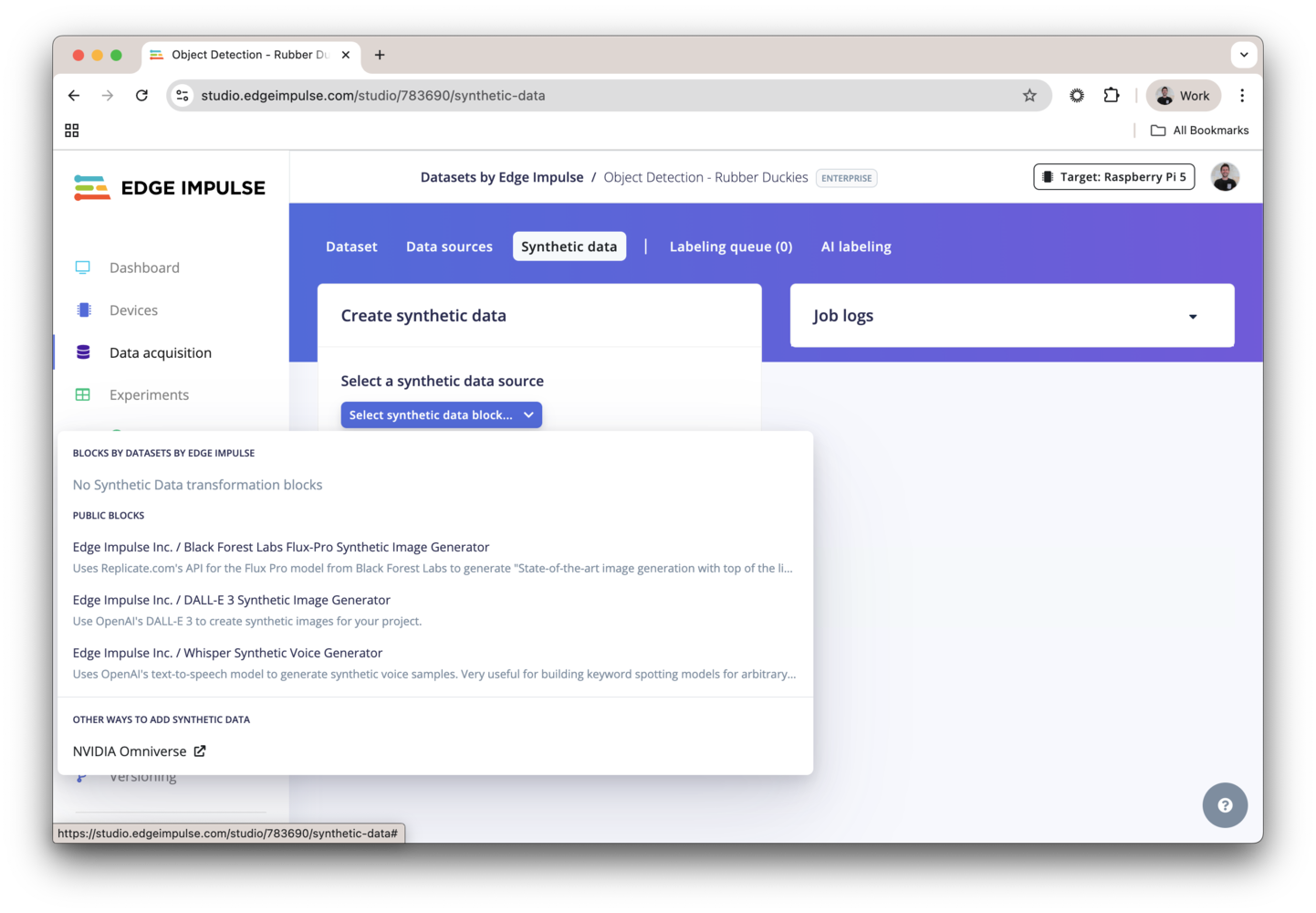
Synthetic data blocks
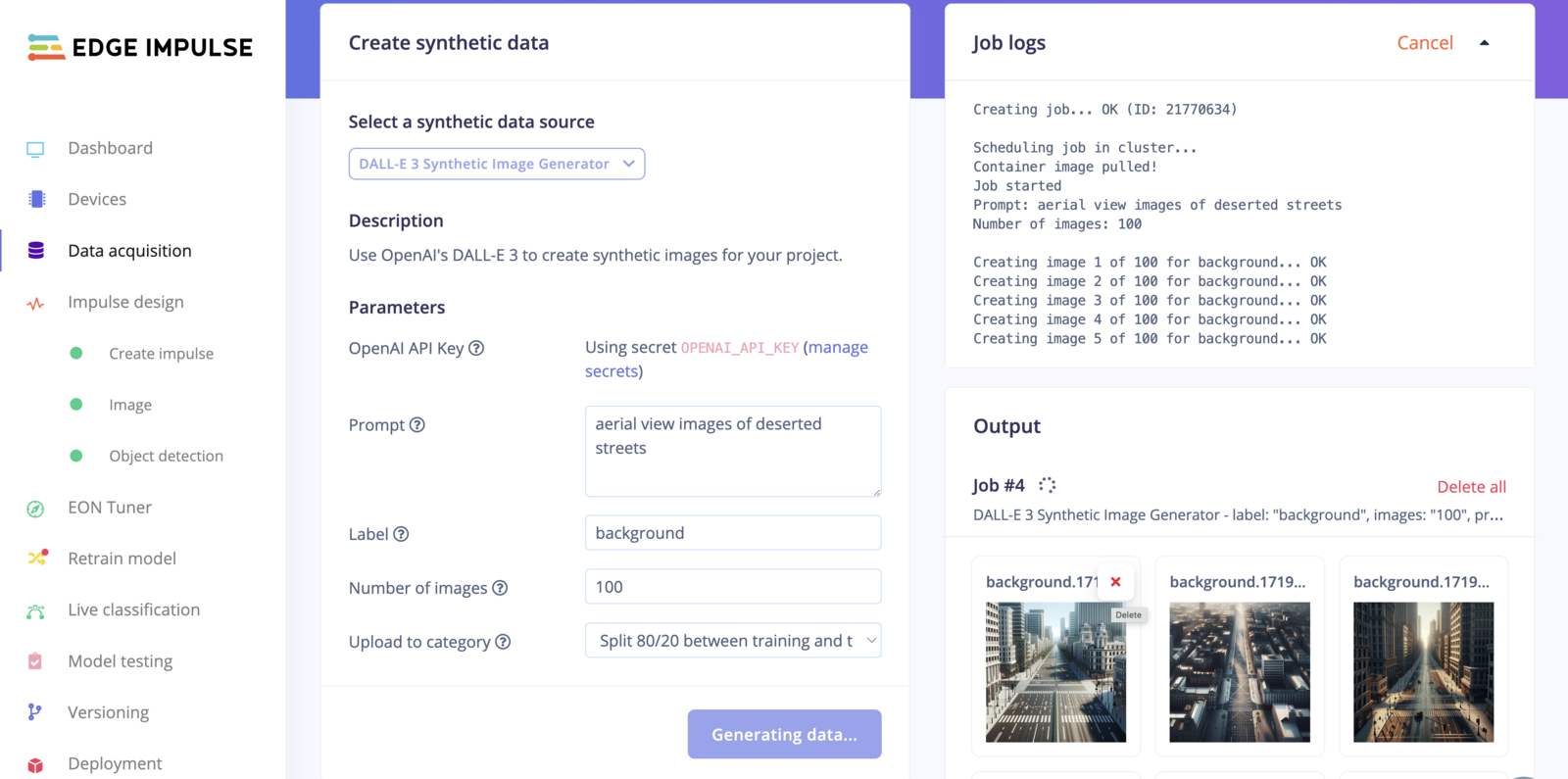
DALL-E image generation block
DALL-E is a generative model that creates images from text descriptions. With the DALL-E block in the Synthetic data tab, you can generate image datasets for your projects. For more information, see the DALL-E tutorial.Synthetic data tab - DALL-E
Flux Pro image generation block
Flux Pro is a generative model that can create high-quality images based on textual descriptions. With the Flux Pro block in the Synthetic data tab, you can generate image datasets for your projects. The model runs on Replicate, so you need a Replicate account and API key.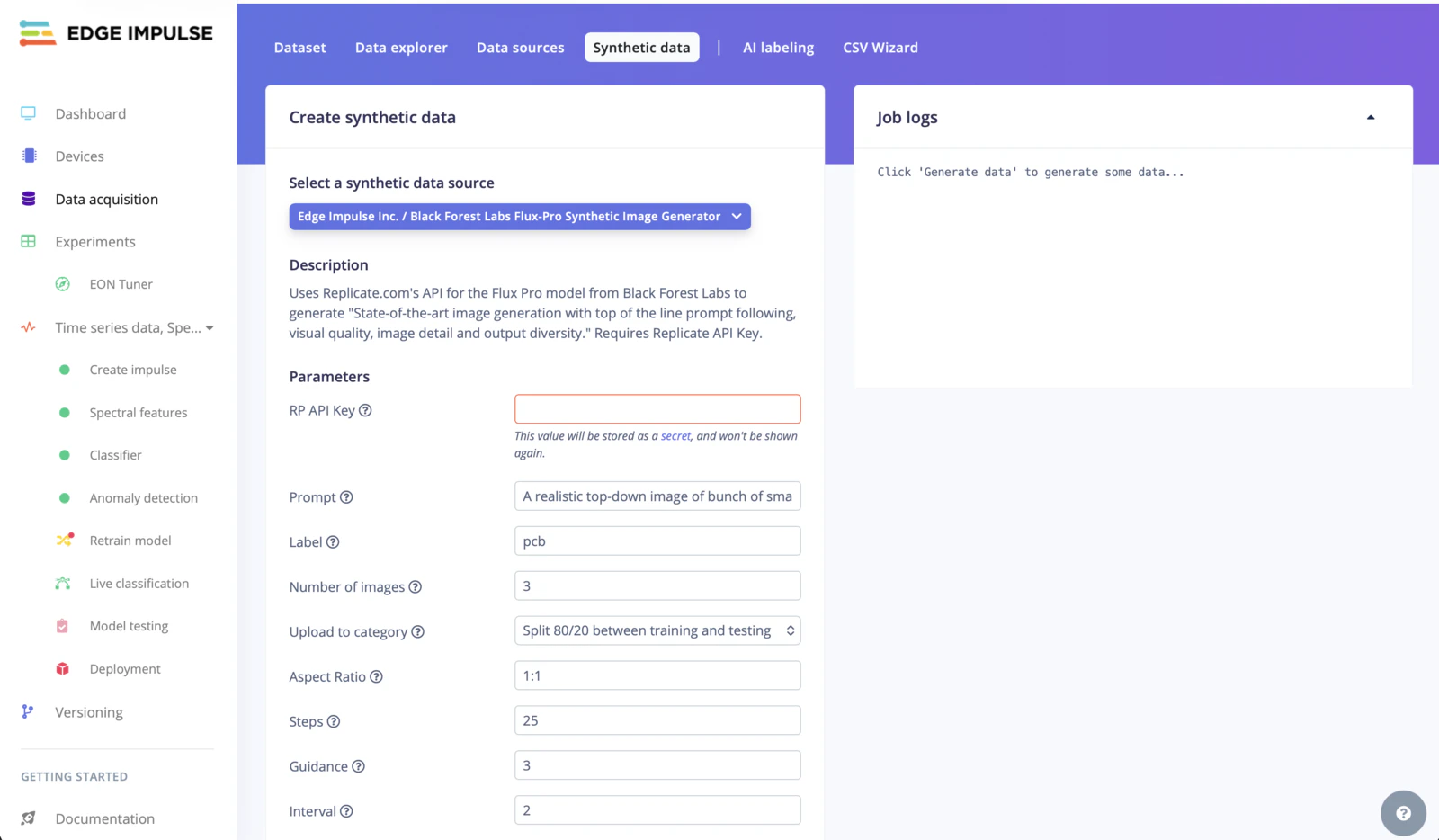
Synthetic data tab - Flux Pro
Time-series data augmentation block
Only available on the Enterprise planThis feature is only available on the Enterprise plan. Review our plans and pricing or sign up for our free expert-led trial today.
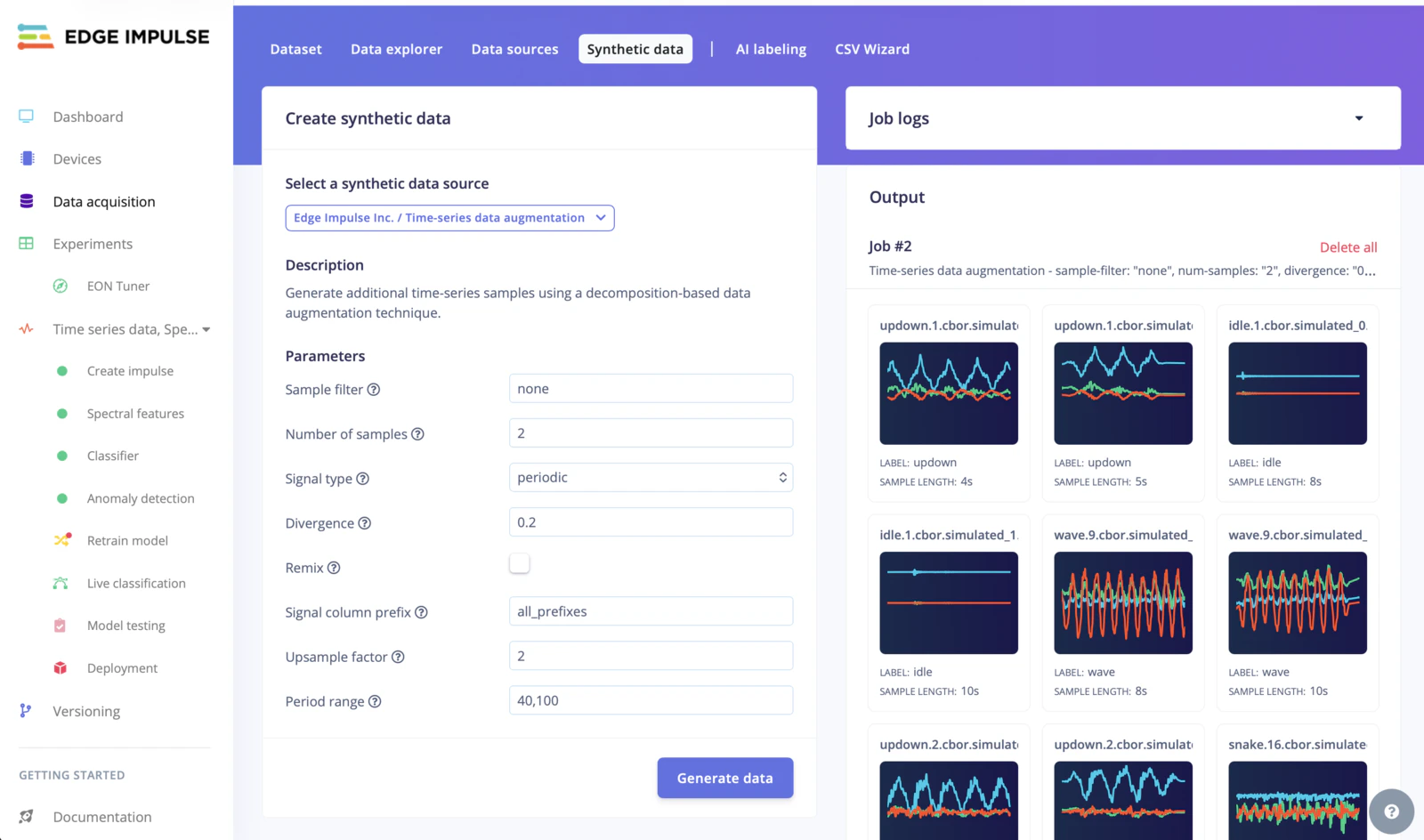
Synthetic data tab - Time-series Data Augmentation
Whisper keyword spotting generation block
The Whisper keyword spotting block uses the OpenAI text-to-speech API to generate spoken samples of a keyword. Use it to build audio datasets for voice recognition and command-and-control applications.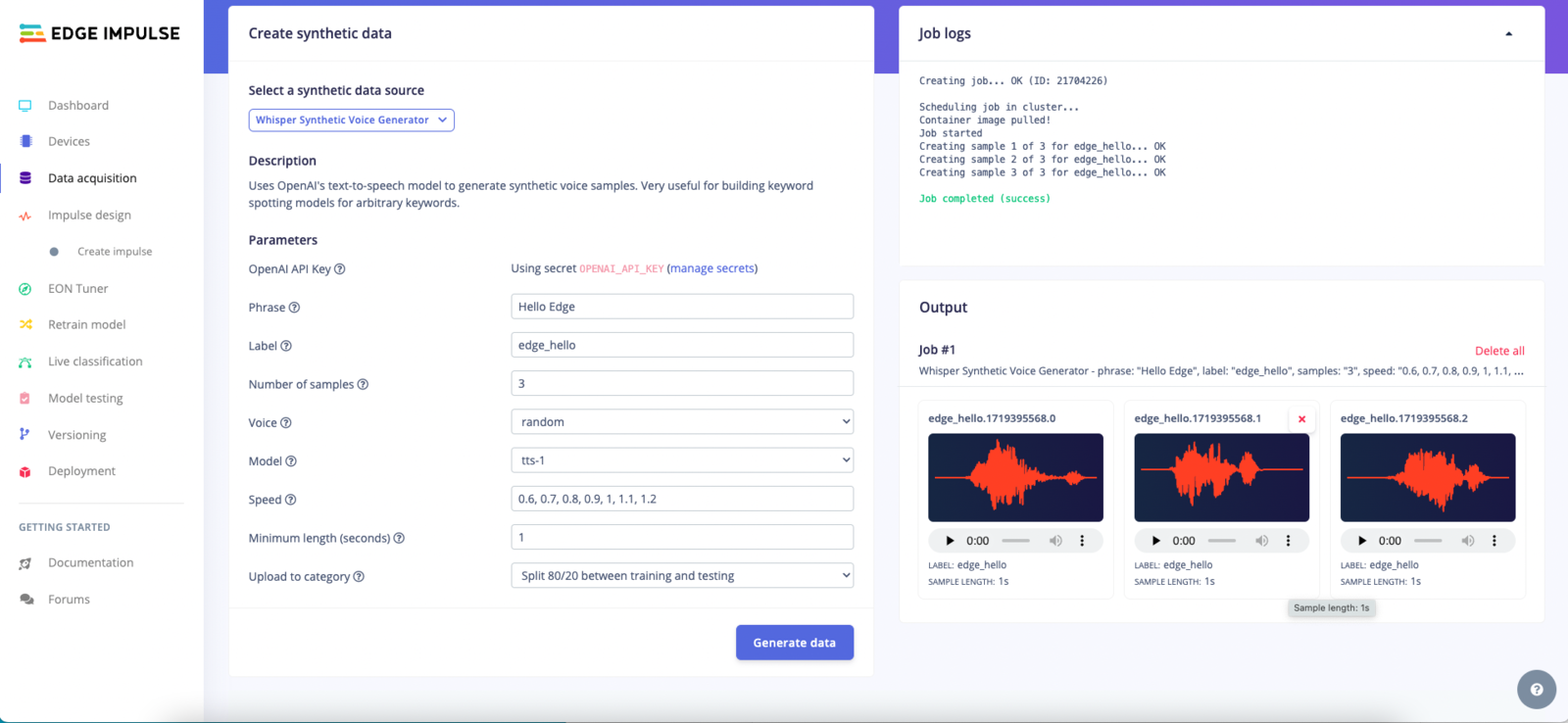
Synthetic data tab - Whisper