> ## Documentation Index
> Fetch the complete documentation index at: https://docs.edgeimpulse.com/llms.txt
> Use this file to discover all available pages before exploring further.
# Retrain model
> Regenerate features and retrain an existing impulse in one step after adding data to a project.
Training and deploying high performing ML models is usually considered as a continuous process rather than a one time exercise. When you are validating your model and discover an overfit, you might consider adding some more diverse data then perform model retraining while maintaining the initially set DSP and Neural Network block configurations.
Also during inference If you find that the data distribution has drifted significantly from the initial training distribution, it is usually a good common practice to retrain your model on the newer data distribution to keep up with the high model performance.
The **Retrain model** feature in the Edge Impulse Studio is useful when adding new data to your project. It uses already known parameters from your selected DSP and ML blocks then uses them to automatically regenerate new features and retrain the Neural Network model in one single step. You can consider this a shortcut for retraining your model since you don’t need to go through all the blocks in your impulse one by one again.
## What retraining does
Retraining runs on the impulse that is currently selected in the left navigation bar, using the last known parameters for that impulse. In order, it:
1. Regenerates the features for every [processing block](/studio/projects/processing-blocks) in the impulse, so that new or changed data samples are included.
2. Retrains every [learning block](/studio/projects/learning-blocks) in the impulse with those features.
Nothing in your impulse design changes. Window size, processing block parameters, model architecture, and training settings are all reused exactly as they were. If you want to change any of those, edit the block in [Impulse design](/studio/projects/impulse-design) and train from there instead, or add a second impulse so you can compare the two configurations as [experiments](/studio/projects/experiments).
Because retraining is per impulse, a project with several impulses needs each one retrained separately. The experiments table flags impulses that have become stale, which makes it easy to see which ones still need a retrain after a dataset change.
## Retraining a model
To retrain your model after adding some data, navigate to the **Retrain model** tab and click **Train model**.
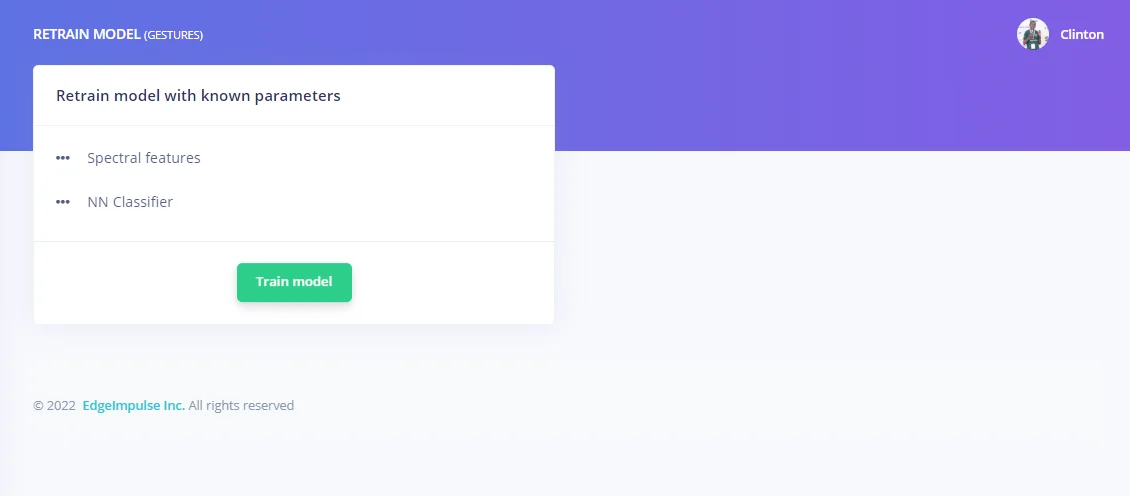 Retraining replaces the previously trained model for that impulse. If you want to keep the old model, take a [version](/studio/projects/versioning) of your project first. After retraining, re-run [model testing](/studio/projects/model-testing) so that the test results reflect the new model, and rebuild any [deployment](/studio/projects/deployment) you had already downloaded.
## Retraining programmatically
Retraining is also available through the [Edge Impulse Studio API](/apis/studio) as the [Retrain](/apis/studio/jobs/retrain) job, which accepts an optional `impulseId` and streams progress over the WebSocket API. This is the endpoint to use when you want to retrain on a schedule or as part of a data pipeline.
## Additional resources
* [Impulse design](/studio/projects/impulse-design)
* [Experiments](/studio/projects/experiments)
* [Model testing](/studio/projects/model-testing)
* [Versioning](/studio/projects/versioning)
Retraining replaces the previously trained model for that impulse. If you want to keep the old model, take a [version](/studio/projects/versioning) of your project first. After retraining, re-run [model testing](/studio/projects/model-testing) so that the test results reflect the new model, and rebuild any [deployment](/studio/projects/deployment) you had already downloaded.
## Retraining programmatically
Retraining is also available through the [Edge Impulse Studio API](/apis/studio) as the [Retrain](/apis/studio/jobs/retrain) job, which accepts an optional `impulseId` and streams progress over the WebSocket API. This is the endpoint to use when you want to retrain on a schedule or as part of a data pipeline.
## Additional resources
* [Impulse design](/studio/projects/impulse-design)
* [Experiments](/studio/projects/experiments)
* [Model testing](/studio/projects/model-testing)
* [Versioning](/studio/projects/versioning)