> ## Documentation Index
> Fetch the complete documentation index at: https://docs.edgeimpulse.com/llms.txt
> Use this file to discover all available pages before exploring further.
# Devices
> Connect devices to a project to collect data, run live classification, and deploy pre-built firmware.
There is a wide variety of devices that you can connect to your Edge Impulse project. These devices can help you collect datasets for your project, test your trained ML model and even deploy your ML model directly to your development board with a pre-built binary application (for [fully supported development platforms](/hardware)).
On the **Devices** tab, you'll find a list of all your connected devices and a guide on how to connect new devices that are supported by Edge Impulse.
 ## What a connected device gives you
A device connects to your project over the [remote management API](/apis/remote-management):
* **Collecting data.** A connected device appears as a source in [**Data acquisition**](/studio/projects/data-acquisition), where you choose one of its sensors, a sample length, and a frequency, and start sampling into your dataset.
* **Running live classification.** [**Live classification**](/studio/projects/live-classification) samples fresh data from the device and runs it through your impulse, so you can see how the model behaves on real signals rather than on your test set.
* **Deploying firmware.** For fully supported boards, [**Deployment**](/studio/projects/deployment) can build a pre-built binary that runs your impulse standalone on the device.
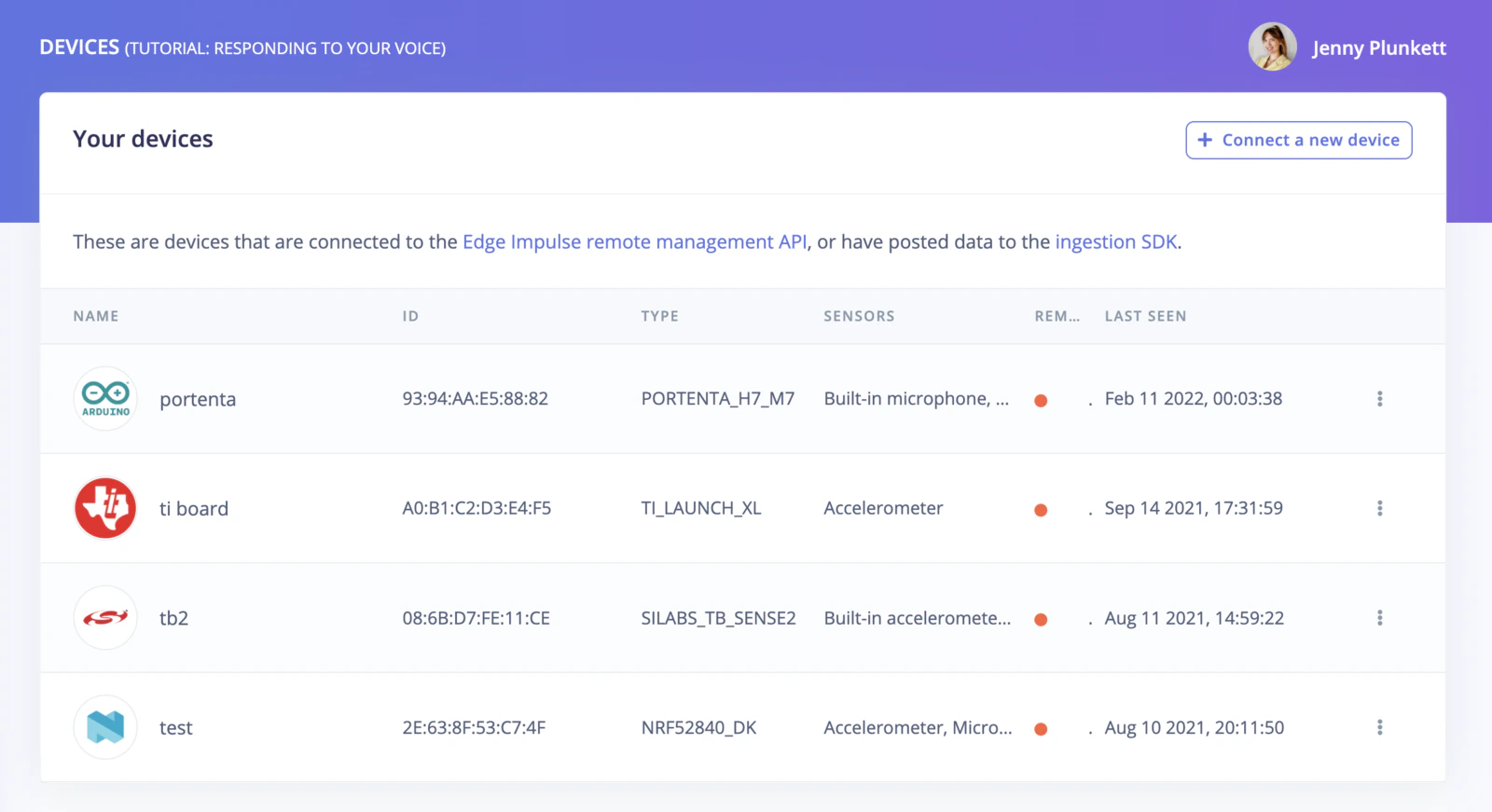
For each device, the list shows its name, type, unique device ID, supported sensors, when it was last seen, and whether it is currently connected. Devices belong to the project rather than to a single impulse, so the same device can collect data for, and test, any impulse in the project.
## Connecting a device
To connect a new device, click on the **Connect a new device** button on the top right of your screen.
## What a connected device gives you
A device connects to your project over the [remote management API](/apis/remote-management):
* **Collecting data.** A connected device appears as a source in [**Data acquisition**](/studio/projects/data-acquisition), where you choose one of its sensors, a sample length, and a frequency, and start sampling into your dataset.
* **Running live classification.** [**Live classification**](/studio/projects/live-classification) samples fresh data from the device and runs it through your impulse, so you can see how the model behaves on real signals rather than on your test set.
* **Deploying firmware.** For fully supported boards, [**Deployment**](/studio/projects/deployment) can build a pre-built binary that runs your impulse standalone on the device.
For each device, the list shows its name, type, unique device ID, supported sensors, when it was last seen, and whether it is currently connected. Devices belong to the project rather than to a single impulse, so the same device can collect data for, and test, any impulse in the project.
## Connecting a device
To connect a new device, click on the **Connect a new device** button on the top right of your screen.
 You will get a pop-up with multiple options of devices you can connect to your Edge Impulse project. Available options include:
* [Connecting a fully supported development board](/hardware).
* [Using your mobile phone](/hardware/devices/mobile-phone).
* [Using your computer (Linux/Mac)](/hardware/devices/macos).
* [Using the serial port to connect devices that are not fully supported](/tools/clis/edge-impulse-cli/data-forwarder).
A device that isn't connected stays in the list with its last-seen timestamp.
## Managing devices programmatically
The [Edge Impulse Studio API](/apis/studio) exposes the same device operations as the **Devices** page: [list devices](/apis/studio/devices/lists-devices), [get a device](/apis/studio/devices/get-device), [rename a device](/apis/studio/devices/rename-device), and [delete a device](/apis/studio/devices/delete-device). Devices that are not physically supported by Edge Impulse firmware can also be registered against a project and then driven through the [remote management API](/apis/remote-management).
## Additional resources
* [Supported hardware](/hardware)
* [Data acquisition](/studio/projects/data-acquisition)
* [Live classification](/studio/projects/live-classification)
* [Data forwarder](/tools/clis/edge-impulse-cli/data-forwarder)
You will get a pop-up with multiple options of devices you can connect to your Edge Impulse project. Available options include:
* [Connecting a fully supported development board](/hardware).
* [Using your mobile phone](/hardware/devices/mobile-phone).
* [Using your computer (Linux/Mac)](/hardware/devices/macos).
* [Using the serial port to connect devices that are not fully supported](/tools/clis/edge-impulse-cli/data-forwarder).
A device that isn't connected stays in the list with its last-seen timestamp.
## Managing devices programmatically
The [Edge Impulse Studio API](/apis/studio) exposes the same device operations as the **Devices** page: [list devices](/apis/studio/devices/lists-devices), [get a device](/apis/studio/devices/get-device), [rename a device](/apis/studio/devices/rename-device), and [delete a device](/apis/studio/devices/delete-device). Devices that are not physically supported by Edge Impulse firmware can also be registered against a project and then driven through the [remote management API](/apis/remote-management).
## Additional resources
* [Supported hardware](/hardware)
* [Data acquisition](/studio/projects/data-acquisition)
* [Live classification](/studio/projects/live-classification)
* [Data forwarder](/tools/clis/edge-impulse-cli/data-forwarder)