> ## Documentation Index
> Fetch the complete documentation index at: https://docs.edgeimpulse.com/llms.txt
> Use this file to discover all available pages before exploring further.
# Upload portals
> Configure upload portals that let external contributors send files into organization storage buckets.
**Only available on the Enterprise plan**
This feature is only available on the Enterprise plan. Review our [plans and pricing](https://edgeimpulse.com/pricing) or sign up for our free [expert-led trial](https://edgeimpulse.com/expert-led-trial) today.
An upload portal lets people outside your organization upload files to one path in one of your storage buckets. You share a link, a contributor drags files onto a web page, and the files are stored in your bucket. Contributors don't need an Edge Impulse account.
Use it to collect data from a test site, a clinical partner, or a customer without handing out credentials to your storage or receiving a zip file by email.
## What a portal does and does not allow
* **Uploads go straight into your bucket**, which can be in your own cloud account or on-premise, so the data never has to live anywhere you do not control.
* **The link is the credential.** A portal URL contains an authentication token, and anyone holding it can upload. Treat it like a password, and rotate the token when the engagement ends or the link leaks. Rotating invalidates the old link immediately.
* **Contributors can't download files.** The portal token allows uploading files and listing what is in the portal path. Downloading requires a JWT token from a member of the organization.
* **Nothing can be deleted through the portal UI.** A contributor who uploads the wrong file can't remove it. To remove a file, use the [Delete file from portal](/apis/studio/uploadportal/delete-file-from-portal) API.
* **Uploads are matched by content hash.** An identical file is skipped on re-upload, so you can safely retry an interrupted batch. A same-named file with different content overwrites the existing one, so a correction can be re-sent under its original name.
## Configuring a storage bucket
Data is stored in cloud storage. For details on how to connect a cloud storage provider to Edge Impulse, refer to the [Cloud data storage](/studio/organizations/data/cloud-data-storage) documentation.
## Creating an upload portal
With your storage bucket configured you're ready to set up your first upload portal. In your organization go to **Data > Upload portals** and choose **Create new upload portal**. Here, select a name, a description, the storage bucket, and a path in the storage bucket.
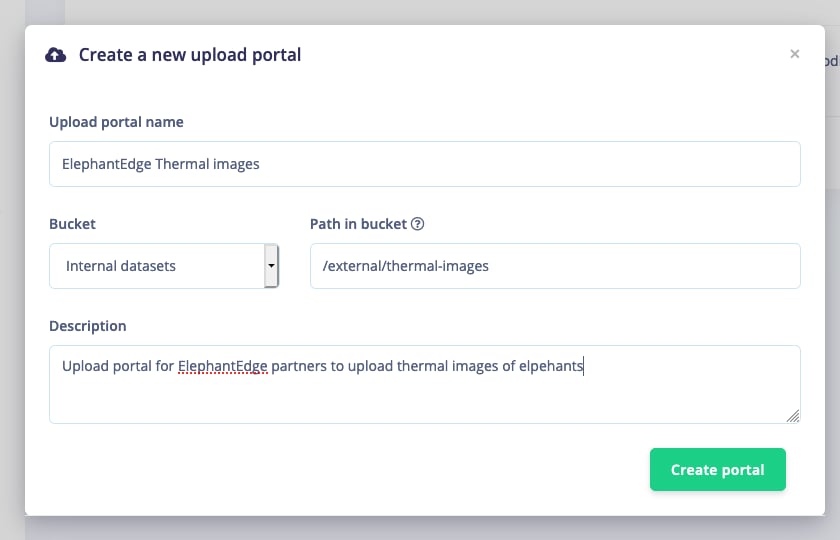 After your portal is created a link is shown. This link contains an authentication token, and can be shared directly with the third party.
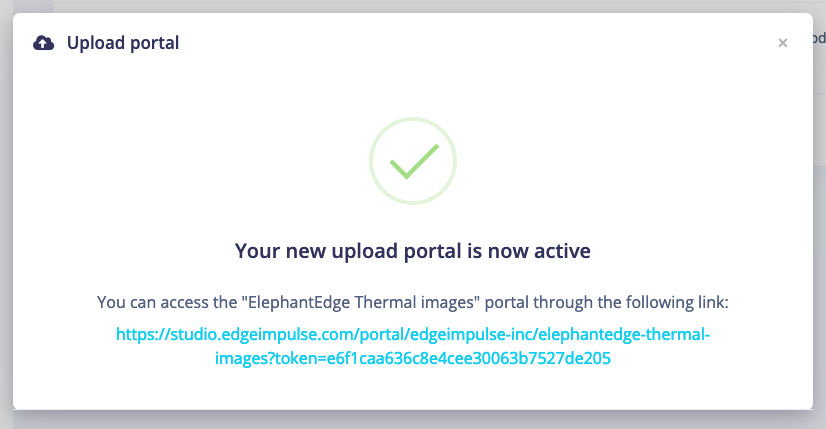 Click the link to open the portal. If you ever forget the link: no worries. Click the `⋮` next to your portal, and choose **View portal**.
## Uploading data to the portal
Click the link to open the portal. If you ever forget the link: no worries. Click the `⋮` next to your portal, and choose **View portal**.
## Uploading data to the portal
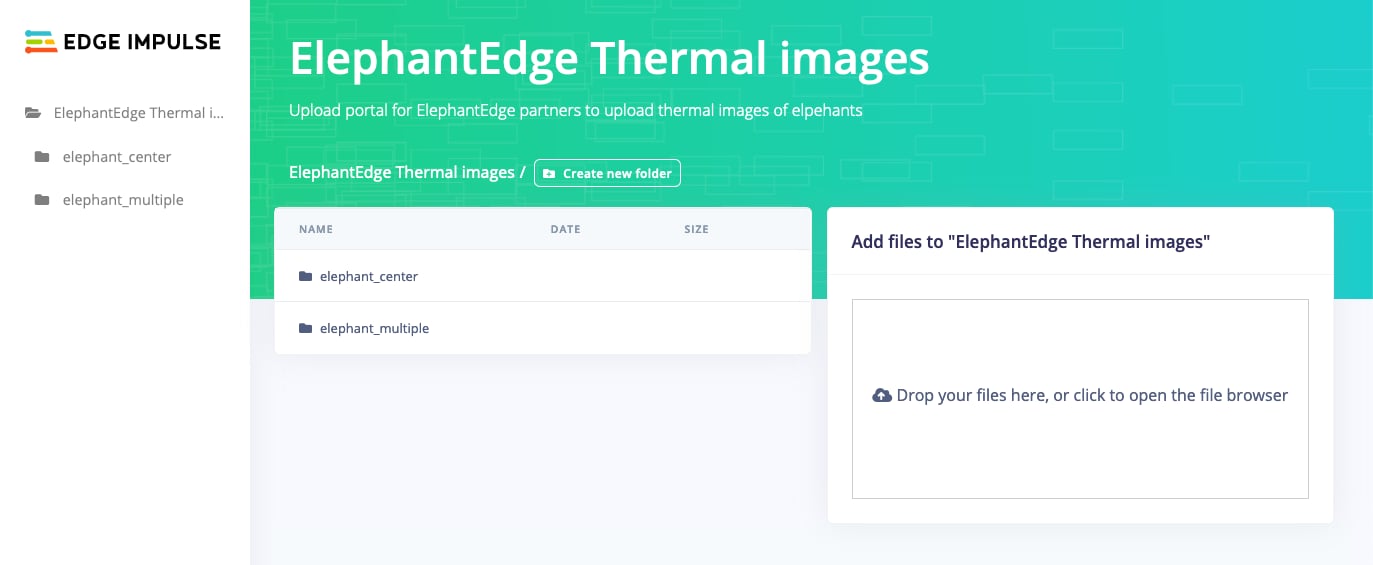 To upload data, drag and drop files or folders onto the drop zone on the right, or use **Create new folder** to lay out a folder structure first. There is no limit on the number of files.
Before contributors start uploading, tell them which folder structure to use. Labels can be taken from folder names when you import the data, so if contributors use different structures, you'll need to reorganize the files first, either by hand or with a [transformation block](/studio/organizations/transformation-blocks) in a [data pipeline](/studio/organizations/data-pipelines).
## Using a portal in transformation blocks and clinical pipelines
If you want to process data in a portal as part of a [Clinical Pipeline](/knowledge/guides/reference-designs/health-reference-design) you can either:
1. Mount the portal directly into a transformation block via **Custom blocks > Transformation blocks > Edit block**, and select the portal under mount points.
2. Mount the bucket that the portal is in, as a transformation block. This will also give you access to all other data in the bucket, which is helpful for syncing other data (see [Synchronizing clinical data](/knowledge/guides/reference-designs/health-reference-design/synchronizing-clinical-data)).
## Adding the data to your project
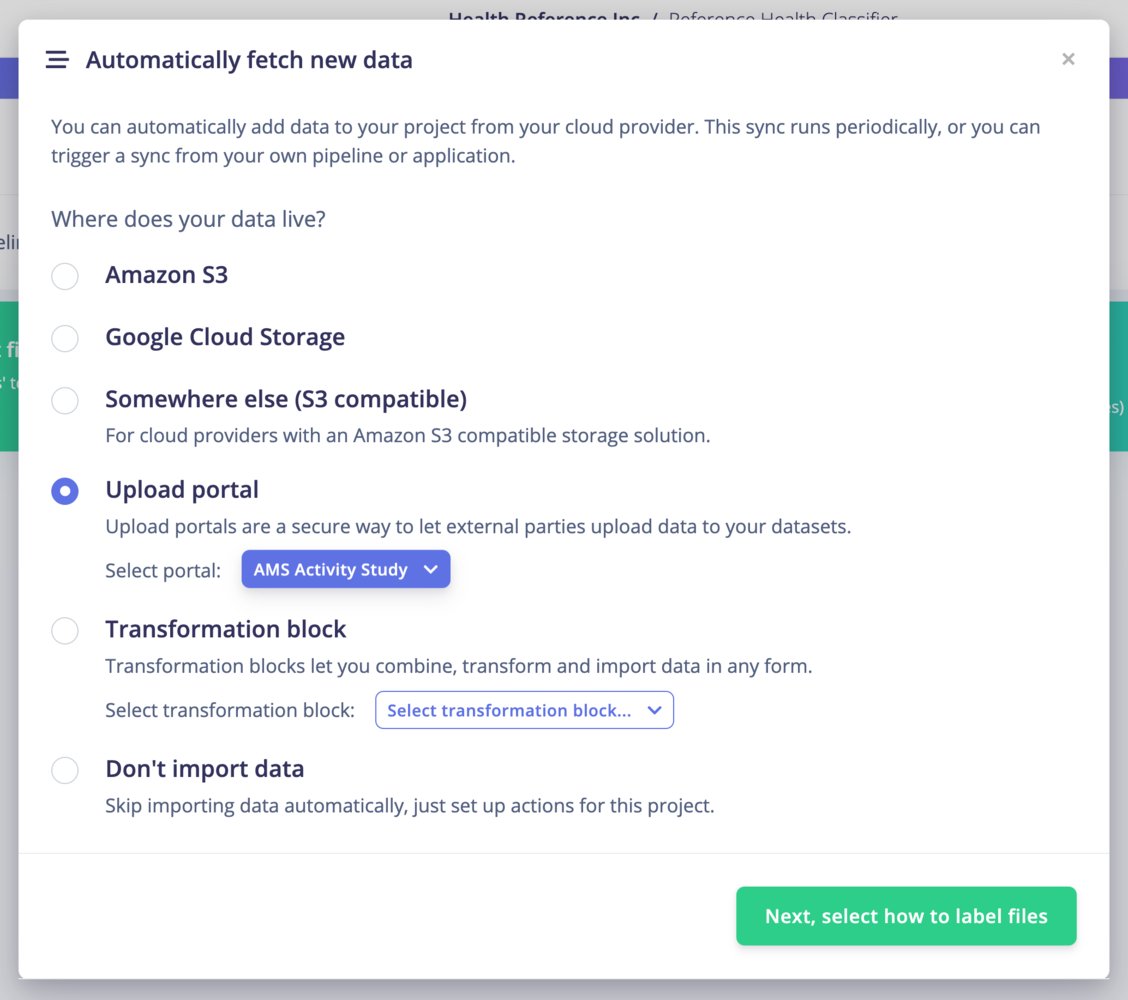
If the data in your portal is already in a format the ingestion service accepts, you can import it straight into a project. In your project, go to [**Data sources**](/studio/projects/data-acquisition/data-sources), select **Upload portal**, and follow the wizard. Because a data source runs on a schedule, this turns the portal into a continuous feed: a contributor uploads, and the next pipeline run pulls the new files into the project and can retrain on them.
To upload data, drag and drop files or folders onto the drop zone on the right, or use **Create new folder** to lay out a folder structure first. There is no limit on the number of files.
Before contributors start uploading, tell them which folder structure to use. Labels can be taken from folder names when you import the data, so if contributors use different structures, you'll need to reorganize the files first, either by hand or with a [transformation block](/studio/organizations/transformation-blocks) in a [data pipeline](/studio/organizations/data-pipelines).
## Using a portal in transformation blocks and clinical pipelines
If you want to process data in a portal as part of a [Clinical Pipeline](/knowledge/guides/reference-designs/health-reference-design) you can either:
1. Mount the portal directly into a transformation block via **Custom blocks > Transformation blocks > Edit block**, and select the portal under mount points.
2. Mount the bucket that the portal is in, as a transformation block. This will also give you access to all other data in the bucket, which is helpful for syncing other data (see [Synchronizing clinical data](/knowledge/guides/reference-designs/health-reference-design/synchronizing-clinical-data)).
## Adding the data to your project
If the data in your portal is already in a format the ingestion service accepts, you can import it straight into a project. In your project, go to [**Data sources**](/studio/projects/data-acquisition/data-sources), select **Upload portal**, and follow the wizard. Because a data source runs on a schedule, this turns the portal into a continuous feed: a contributor uploads, and the next pipeline run pulls the new files into the project and can retrain on them.
 ## API reference
| Endpoint | Use |
| - | - |
| [Create upload portal](/apis/studio/organizationportals/create-upload-portal) | Create a portal over a bucket path |
| [List upload portals](/apis/studio/organizationportals/list-upload-portals) | Retrieve every portal in the organization |
| [Update upload portal](/apis/studio/organizationportals/update-upload-portal) | Change a portal's name, description, or path |
| [Rotate upload portal token](/apis/studio/organizationportals/rotate-upload-portal-token) | Invalidate the existing link and issue a new one |
| [Verify upload portal information](/apis/studio/organizationportals/verify-upload-portal-information) | Retrieve a subset of files, used when setting up a data source |
| [Delete upload portal](/apis/studio/organizationportals/delete-upload-portal) | Remove a portal without touching the uploaded files |
## Programmatic access to portals
Portals have their own endpoints, separate from the organization endpoints used to manage portals, and authenticate with the portal token rather than an organization key.
| Endpoint | Use |
| - | - |
| [Portal info](/apis/studio/uploadportal/portal-info) | Read the portal's name and configuration |
| [Create pre-signed S3 upload link](/apis/studio/uploadportal/create-pre-signed-s3-upload-link) | Get a URL to upload one file to |
| [List files in portal](/apis/studio/uploadportal/list-files-in-portal) | Enumerate what has been uploaded under a prefix |
| [Download file from portal](/apis/studio/uploadportal/download-file-from-portal) | Retrieve a file, which requires a JWT token |
| [Rename file from portal](/apis/studio/uploadportal/rename-file-from-portal) | Correct a file name after upload |
| [Delete file from portal](/apis/studio/uploadportal/delete-file-from-portal) | Remove a file, which the portal UI does not allow |
Uploading takes two steps: you ask Edge Impulse for a pre-signed link, then upload the file to that link directly. The file goes straight to your bucket without passing through Edge Impulse.
The script below shows the whole flow. Uploading and listing need only the portal token; downloading also needs a JWT token. Without one, the script only uploads and lists files.
```python theme={"system"}
# portal_api.py
import requests
import json
import os
import hashlib
PORTAL_TOKEN = os.environ.get('EI_PORTAL_TOKEN')
PORTAL_ID = os.environ.get('EI_PORTAL_ID')
JWT_TOKEN = os.environ.get('EI_JWT_TOKEN')
if not PORTAL_TOKEN:
print('Missing EI_PORTAL_TOKEN environmental variable.')
print('Go to a portal, and copy the part after "?token=" .')
print('Then run:')
print(' export EI_PORTAL_TOKEN=ec61e...')
print('')
print('You can add the line above to your ~/.bashrc or ~/.zshrc file to automatically load the token in the future.')
exit(1)
if not PORTAL_ID:
print('Missing EI_PORTAL_ID environmental variable.')
print('Go to a portal, open the browser console, and look for "portalId" in the "Hello world from Edge Impulse" object to find it.')
print('Then run:')
print(' export EI_PORTAL_ID=122')
print('')
print('You can add the line above to your ~/.bashrc or ~/.zshrc file to automatically load the token in the future.')
exit(1)
if not JWT_TOKEN:
print('WARN: Missing EI_JWT_TOKEN environmental variable, you will only have write-only access to the portal')
print('Run `python3 get_jwt_token.py` for instructions on how to set the token')
print('(this requires access to the organization that owns the portal)')
def get_file_hash(path):
with open(path, 'rb') as f:
return hashlib.md5(f.read()).hexdigest()
def create_upload_link(file_name_in_portal, path):
url = "https://studio.edgeimpulse.com/v1/api/portals/" + PORTAL_ID + "/upload-link"
payload = json.dumps({
'fileName': file_name_in_portal,
"fileSize": os.path.getsize(path),
"fileHash": get_file_hash(path)
})
headers = {
'accept': "application/json",
'content-type': "application/json",
'x-token': PORTAL_TOKEN
}
response = requests.request("POST", url, data=payload, headers=headers)
if (response.status_code != 200):
raise Exception('status code was not 200, but ' + str(response.status_code) + ' - ' + response.text)
j = response.json()
if (not j['success']):
raise Exception('api request did not succeed ' + str(response.status_code) + ' - ' + response.text)
return j['url']
def upload_file_to_s3(signed_url, path):
with open(path, 'rb') as f:
response = requests.request("PUT", signed_url, data=f, headers={})
if (response.status_code != 200):
raise Exception('status code was not 200, but ' + str(response.status_code) + ' - ' + response.text)
def upload_file_to_portal(file_name_in_portal, path):
print('Uploading', file_name_in_portal + '...')
link = create_upload_link(file_name_in_portal, path)
upload_file_to_s3(link, path)
print('Uploading', file_name_in_portal, 'OK')
print('')
def create_download_link(file_name_in_portal):
url = "https://studio.edgeimpulse.com/v1/api/portals/" + PORTAL_ID + "/files/download"
payload = json.dumps({
'path': file_name_in_portal,
})
headers = {
'accept': "application/json",
'content-type': "application/json",
'x-token': PORTAL_TOKEN,
'x-jwt-token': JWT_TOKEN
}
response = requests.request("POST", url, data=payload, headers=headers)
if (response.status_code != 200):
raise Exception('status code was not 200, but ' + str(response.status_code) + ' - ' + response.text)
j = response.json()
if (not j['success']):
raise Exception('api request did not succeed ' + str(response.status_code) + ' - ' + response.text)
return j['url']
def download_file_from_s3(signed_url):
response = requests.request("GET", signed_url, headers={})
if (response.status_code != 200):
raise Exception('status code was not 200, but ' + str(response.status_code) + ' - ' + response.text)
return response.content
def download_file_from_portal(file_name_in_portal):
print('Downloading', file_name_in_portal + '...')
link = create_download_link(file_name_in_portal)
f = download_file_from_s3(link)
print('Downloading', file_name_in_portal, 'OK')
print('')
return f
def list_files_in_portal(prefix):
url = "https://studio.edgeimpulse.com/v1/api/portals/" + PORTAL_ID + "/files"
payload = json.dumps({
'prefix': prefix,
})
headers = {
'accept': "application/json",
'content-type': "application/json",
'x-token': PORTAL_TOKEN
}
response = requests.request("POST", url, data=payload, headers=headers)
if (response.status_code != 200):
raise Exception('status code was not 200, but ' + str(response.status_code) + ' - ' + response.text)
j = response.json()
if (not j['success']):
raise Exception('api request did not succeed ' + str(response.status_code) + ' - ' + response.text)
return j['files']
# this is how you upload files to a portal using the Edge Impulse API
# first argument is the path in the portal, second is the location of the file
upload_file_to_portal('test.jpg', '/Users/janjongboom/Downloads/test.jpg')
# uploading to a subdirectory
upload_file_to_portal('flowers/daisy.jpg', '/Users/janjongboom/Downloads/daisy-resized.jpg')
# listing files
print('files in root folder', list_files_in_portal(''))
print('files in "flowers/"', list_files_in_portal('flowers/'))
# downloading a file
if JWT_TOKEN:
buffer = download_file_from_portal('flowers/daisy.jpg')
with open('output.jpg', 'wb') as f:
f.write(buffer)
else:
print('Not downloading files, EI_JWT_TOKEN not set')
print('Done!')
```
And here's a script to generate JWT tokens:
```python theme={"system"}
# get_jwt_token.py
import requests
import json
import argparse
def get_token(username, password):
url = "https://studio.edgeimpulse.com/v1/api-login"
payload = json.dumps({
'username': username,
"password": password,
})
headers = {
'accept': "application/json",
'content-type': "application/json",
}
response = requests.request("POST", url, data=payload, headers=headers)
if (response.status_code != 200):
raise Exception('status code was not 200, but ' + str(response.status_code) + ' - ' + response.text)
j = response.json()
if (not j['success']):
raise Exception('api request did not succeed ' + str(response.status_code) + ' - ' + response.text)
return j['token']
if __name__ == "__main__":
parser = argparse.ArgumentParser(description='Get Edge Impulse JWT token')
parser.add_argument('--username', type=str, required=True, help="Username or email address")
parser.add_argument('--password', type=str, required=True)
args, unknown = parser.parse_known_args()
token = get_token(args.username, args.password)
print('JWT token is:', token)
print('')
print('Use this in portal_api.py via:')
print(' export EI_JWT_TOKEN=' + token)
print('')
print('You can add the line above to your ~/.bashrc or ~/.zshrc file to automatically load the token in the future.')
print('Note: This token is valid for a limited time!')
```
## Additional resources
* [Organization data](/studio/organizations/data) for how datasets map onto bucket paths
* [Cloud data storage](/studio/organizations/data/cloud-data-storage) for connecting a bucket
* [Data sources](/studio/projects/data-acquisition/data-sources) for importing portal data into a project on a schedule
Any questions, or interested in the enterprise version of Edge Impulse? [Contact us](https://edgeimpulse.com/contact) for more information.
## API reference
| Endpoint | Use |
| - | - |
| [Create upload portal](/apis/studio/organizationportals/create-upload-portal) | Create a portal over a bucket path |
| [List upload portals](/apis/studio/organizationportals/list-upload-portals) | Retrieve every portal in the organization |
| [Update upload portal](/apis/studio/organizationportals/update-upload-portal) | Change a portal's name, description, or path |
| [Rotate upload portal token](/apis/studio/organizationportals/rotate-upload-portal-token) | Invalidate the existing link and issue a new one |
| [Verify upload portal information](/apis/studio/organizationportals/verify-upload-portal-information) | Retrieve a subset of files, used when setting up a data source |
| [Delete upload portal](/apis/studio/organizationportals/delete-upload-portal) | Remove a portal without touching the uploaded files |
## Programmatic access to portals
Portals have their own endpoints, separate from the organization endpoints used to manage portals, and authenticate with the portal token rather than an organization key.
| Endpoint | Use |
| - | - |
| [Portal info](/apis/studio/uploadportal/portal-info) | Read the portal's name and configuration |
| [Create pre-signed S3 upload link](/apis/studio/uploadportal/create-pre-signed-s3-upload-link) | Get a URL to upload one file to |
| [List files in portal](/apis/studio/uploadportal/list-files-in-portal) | Enumerate what has been uploaded under a prefix |
| [Download file from portal](/apis/studio/uploadportal/download-file-from-portal) | Retrieve a file, which requires a JWT token |
| [Rename file from portal](/apis/studio/uploadportal/rename-file-from-portal) | Correct a file name after upload |
| [Delete file from portal](/apis/studio/uploadportal/delete-file-from-portal) | Remove a file, which the portal UI does not allow |
Uploading takes two steps: you ask Edge Impulse for a pre-signed link, then upload the file to that link directly. The file goes straight to your bucket without passing through Edge Impulse.
The script below shows the whole flow. Uploading and listing need only the portal token; downloading also needs a JWT token. Without one, the script only uploads and lists files.
```python theme={"system"}
# portal_api.py
import requests
import json
import os
import hashlib
PORTAL_TOKEN = os.environ.get('EI_PORTAL_TOKEN')
PORTAL_ID = os.environ.get('EI_PORTAL_ID')
JWT_TOKEN = os.environ.get('EI_JWT_TOKEN')
if not PORTAL_TOKEN:
print('Missing EI_PORTAL_TOKEN environmental variable.')
print('Go to a portal, and copy the part after "?token=" .')
print('Then run:')
print(' export EI_PORTAL_TOKEN=ec61e...')
print('')
print('You can add the line above to your ~/.bashrc or ~/.zshrc file to automatically load the token in the future.')
exit(1)
if not PORTAL_ID:
print('Missing EI_PORTAL_ID environmental variable.')
print('Go to a portal, open the browser console, and look for "portalId" in the "Hello world from Edge Impulse" object to find it.')
print('Then run:')
print(' export EI_PORTAL_ID=122')
print('')
print('You can add the line above to your ~/.bashrc or ~/.zshrc file to automatically load the token in the future.')
exit(1)
if not JWT_TOKEN:
print('WARN: Missing EI_JWT_TOKEN environmental variable, you will only have write-only access to the portal')
print('Run `python3 get_jwt_token.py` for instructions on how to set the token')
print('(this requires access to the organization that owns the portal)')
def get_file_hash(path):
with open(path, 'rb') as f:
return hashlib.md5(f.read()).hexdigest()
def create_upload_link(file_name_in_portal, path):
url = "https://studio.edgeimpulse.com/v1/api/portals/" + PORTAL_ID + "/upload-link"
payload = json.dumps({
'fileName': file_name_in_portal,
"fileSize": os.path.getsize(path),
"fileHash": get_file_hash(path)
})
headers = {
'accept': "application/json",
'content-type': "application/json",
'x-token': PORTAL_TOKEN
}
response = requests.request("POST", url, data=payload, headers=headers)
if (response.status_code != 200):
raise Exception('status code was not 200, but ' + str(response.status_code) + ' - ' + response.text)
j = response.json()
if (not j['success']):
raise Exception('api request did not succeed ' + str(response.status_code) + ' - ' + response.text)
return j['url']
def upload_file_to_s3(signed_url, path):
with open(path, 'rb') as f:
response = requests.request("PUT", signed_url, data=f, headers={})
if (response.status_code != 200):
raise Exception('status code was not 200, but ' + str(response.status_code) + ' - ' + response.text)
def upload_file_to_portal(file_name_in_portal, path):
print('Uploading', file_name_in_portal + '...')
link = create_upload_link(file_name_in_portal, path)
upload_file_to_s3(link, path)
print('Uploading', file_name_in_portal, 'OK')
print('')
def create_download_link(file_name_in_portal):
url = "https://studio.edgeimpulse.com/v1/api/portals/" + PORTAL_ID + "/files/download"
payload = json.dumps({
'path': file_name_in_portal,
})
headers = {
'accept': "application/json",
'content-type': "application/json",
'x-token': PORTAL_TOKEN,
'x-jwt-token': JWT_TOKEN
}
response = requests.request("POST", url, data=payload, headers=headers)
if (response.status_code != 200):
raise Exception('status code was not 200, but ' + str(response.status_code) + ' - ' + response.text)
j = response.json()
if (not j['success']):
raise Exception('api request did not succeed ' + str(response.status_code) + ' - ' + response.text)
return j['url']
def download_file_from_s3(signed_url):
response = requests.request("GET", signed_url, headers={})
if (response.status_code != 200):
raise Exception('status code was not 200, but ' + str(response.status_code) + ' - ' + response.text)
return response.content
def download_file_from_portal(file_name_in_portal):
print('Downloading', file_name_in_portal + '...')
link = create_download_link(file_name_in_portal)
f = download_file_from_s3(link)
print('Downloading', file_name_in_portal, 'OK')
print('')
return f
def list_files_in_portal(prefix):
url = "https://studio.edgeimpulse.com/v1/api/portals/" + PORTAL_ID + "/files"
payload = json.dumps({
'prefix': prefix,
})
headers = {
'accept': "application/json",
'content-type': "application/json",
'x-token': PORTAL_TOKEN
}
response = requests.request("POST", url, data=payload, headers=headers)
if (response.status_code != 200):
raise Exception('status code was not 200, but ' + str(response.status_code) + ' - ' + response.text)
j = response.json()
if (not j['success']):
raise Exception('api request did not succeed ' + str(response.status_code) + ' - ' + response.text)
return j['files']
# this is how you upload files to a portal using the Edge Impulse API
# first argument is the path in the portal, second is the location of the file
upload_file_to_portal('test.jpg', '/Users/janjongboom/Downloads/test.jpg')
# uploading to a subdirectory
upload_file_to_portal('flowers/daisy.jpg', '/Users/janjongboom/Downloads/daisy-resized.jpg')
# listing files
print('files in root folder', list_files_in_portal(''))
print('files in "flowers/"', list_files_in_portal('flowers/'))
# downloading a file
if JWT_TOKEN:
buffer = download_file_from_portal('flowers/daisy.jpg')
with open('output.jpg', 'wb') as f:
f.write(buffer)
else:
print('Not downloading files, EI_JWT_TOKEN not set')
print('Done!')
```
And here's a script to generate JWT tokens:
```python theme={"system"}
# get_jwt_token.py
import requests
import json
import argparse
def get_token(username, password):
url = "https://studio.edgeimpulse.com/v1/api-login"
payload = json.dumps({
'username': username,
"password": password,
})
headers = {
'accept': "application/json",
'content-type': "application/json",
}
response = requests.request("POST", url, data=payload, headers=headers)
if (response.status_code != 200):
raise Exception('status code was not 200, but ' + str(response.status_code) + ' - ' + response.text)
j = response.json()
if (not j['success']):
raise Exception('api request did not succeed ' + str(response.status_code) + ' - ' + response.text)
return j['token']
if __name__ == "__main__":
parser = argparse.ArgumentParser(description='Get Edge Impulse JWT token')
parser.add_argument('--username', type=str, required=True, help="Username or email address")
parser.add_argument('--password', type=str, required=True)
args, unknown = parser.parse_known_args()
token = get_token(args.username, args.password)
print('JWT token is:', token)
print('')
print('Use this in portal_api.py via:')
print(' export EI_JWT_TOKEN=' + token)
print('')
print('You can add the line above to your ~/.bashrc or ~/.zshrc file to automatically load the token in the future.')
print('Note: This token is valid for a limited time!')
```
## Additional resources
* [Organization data](/studio/organizations/data) for how datasets map onto bucket paths
* [Cloud data storage](/studio/organizations/data/cloud-data-storage) for connecting a bucket
* [Data sources](/studio/projects/data-acquisition/data-sources) for importing portal data into a project on a schedule
Any questions, or interested in the enterprise version of Edge Impulse? [Contact us](https://edgeimpulse.com/contact) for more information.