> ## Documentation Index
> Fetch the complete documentation index at: https://docs.edgeimpulse.com/llms.txt
> Use this file to discover all available pages before exploring further.
# Data
> Centralize organization datasets, connect storage buckets, and prepare files for importing into Edge Impulse projects.
**Only available on the Enterprise plan**
This feature is only available on the Enterprise plan. Review our [plans and pricing](https://edgeimpulse.com/pricing) or sign up for our free [expert-led trial](https://edgeimpulse.com/expert-led-trial) today.
Organization data holds datasets that you can use across projects. A project's dataset is scoped to that project and stored by Edge Impulse; an organization dataset lives in your own cloud storage and can be queried, transformed, validated, and imported into as many projects as you like.
With more than one project, this saves uploading the same files to each project and keeping the copies in sync.
## How organization data is structured
Organization data has three layers:
* **A bucket** is your cloud storage: S3, Google Cloud Storage, Azure Blob Storage, or any S3-compatible service. Edge Impulse connects to it with credentials you supply.
* **A dataset** is a pointer to a path inside that bucket, plus the metadata Edge Impulse keeps about it. Creating a dataset does not copy or move your files. Your bucket stays the source of truth, and files added to that path by any other tool show up in Edge Impulse.
* **A project import** copies files from the dataset into a project, converting them to a format the ingestion service accepts.
Deleting a dataset in Edge Impulse doesn't delete your files, and you can change files directly in the bucket.
You can also create two datasets over the same bucket path, one generic and one clinical, to get easy uploads from the first and query support from the second.
### Health reference design
We have built a [**health reference design**](/knowledge/guides/reference-designs/health-reference-design) that describes an end-to-end ML workflow for building a wearable health product using Edge Impulse.
In this reference resign, we want to help you understand how to create a full clinical data pipeline by using a public dataset from the [PPG-DaLiA](https://archive.ics.uci.edu/dataset/495/ppg+dalia)
repository. This tutorial will guide you through the following steps:
* [Synchronizing clinical data with a bucket](/knowledge/guides/reference-designs/health-reference-design/synchronizing-clinical-data)
* [Validating clinical data](/knowledge/guides/reference-designs/health-reference-design/validating-clinical-data)
* [Querying clinical data](/knowledge/guides/reference-designs/health-reference-design/querying-clinical-data)
* [Transforming clinical data](/knowledge/guides/reference-designs/health-reference-design/transforming-clinical-data)
* [Building data pipelines](/studio/organizations/data-pipelines)
## Buckets
Before we get started, you must link your organization with one or more storage buckets. Further details about how to integrate with cloud storage providers can be found in the [Cloud data storage](/studio/organizations/data/cloud-data-storage) document.
## Datasets
Two types of dataset structures can be used - **Generic datasets (default)** and **Clinical datasets**.
There is no required format for data files. You can upload data in a wide range of formats, whether it's CSV, Parquet, or a proprietary data format.
However, to import data items to an Edge Impulse project, you will need to use the right format as our studio ingestion API only supports these formats:
* JPG, PNG images
* MP4, AVI video files
* WAV audio files
* JSON/CBOR files in the Edge Impulse [data acquisition format](/tools/specifications/data-acquisition/json-cbor)
* CSV files
**Tip: You can use** [**transformation blocks**](/studio/organizations/custom-blocks/custom-transformation-blocks) **to convert your data**
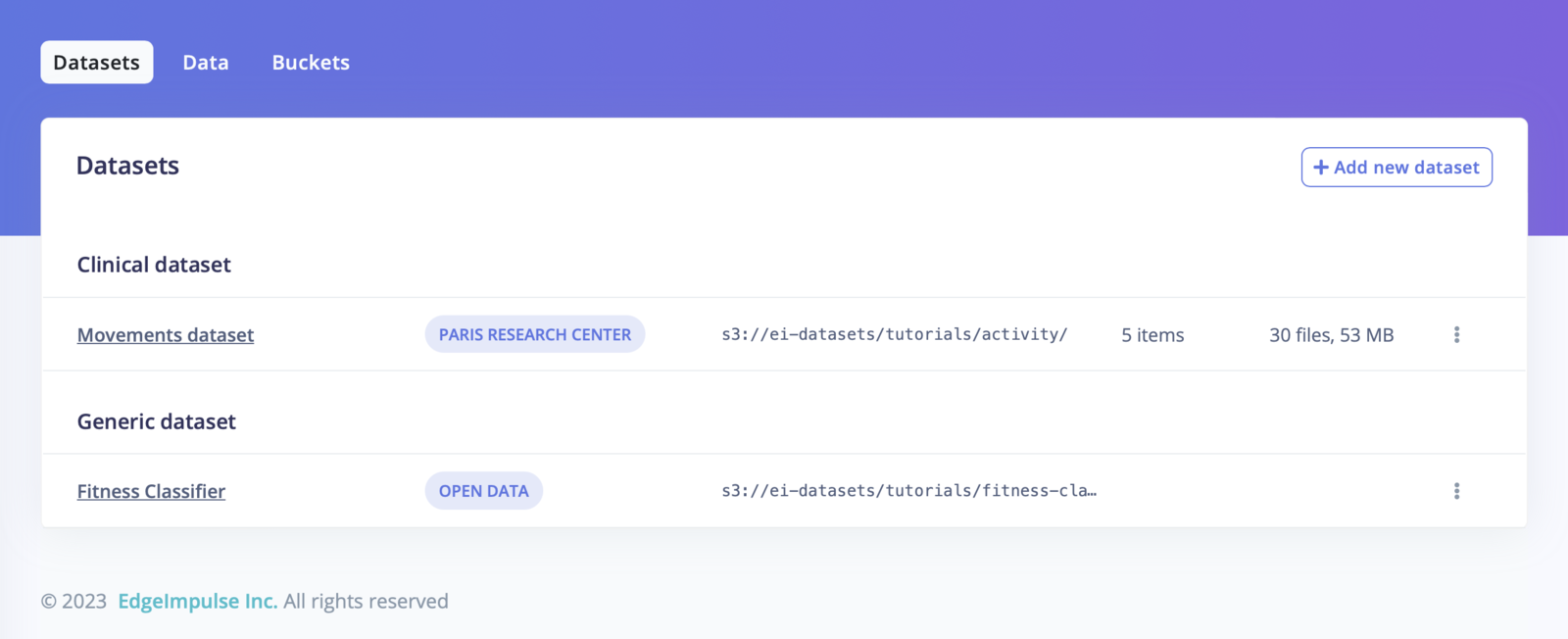 The **default dataset structure** is a file-based one, no matter the directory structure:
For example:
```
images/
├── testing/
│ ├── 1.jpg
│ ├── 2.jpg
│ ├── 3.jpg
│ ...
│ └── 200.jpg
└── training/
├── 1.jpg
├── 2.jpg
├── 3.jpg
...
└── 800.jpg
```
or:
```
keywords/
├── french-accent/
│ ├── hello.wav
│ ├── yes.wav
│ ├── no.wav
├── greek-accent/
│ ├── hello.wav
│ ├── yes.wav
│ ├── no.wav
└── unlabeled/
├── 1.wav
├── 2.wav
├── 3.wav
...
└── 20.wav
```
*Note that you will be able to associate the labels of your data items from the file name or the directory name when importing your data in a project.*
The **clinical dataset structure** groups files into data items. It has three levels:
1. The dataset, a larger set of data items, grouped together.
2. The data item, which carries metadata and has files attached.
3. The data files themselves.
The grouping is defined by folder depth. With a depth of one, the folder `test` is a data item; with a depth of two, `test/abc` is. Set it to the unit you work with, usually a participant, a session, or a device.
That extra layer makes clinical datasets queryable: metadata attaches to the item, so you can ask for every item from a given participant or age band, and the dataset checklist can report how many items pass or fail validation.
See the [health reference design](/knowledge/guides/reference-designs/health-reference-design) tutorial for a deeper explanation.
### Create a new dataset
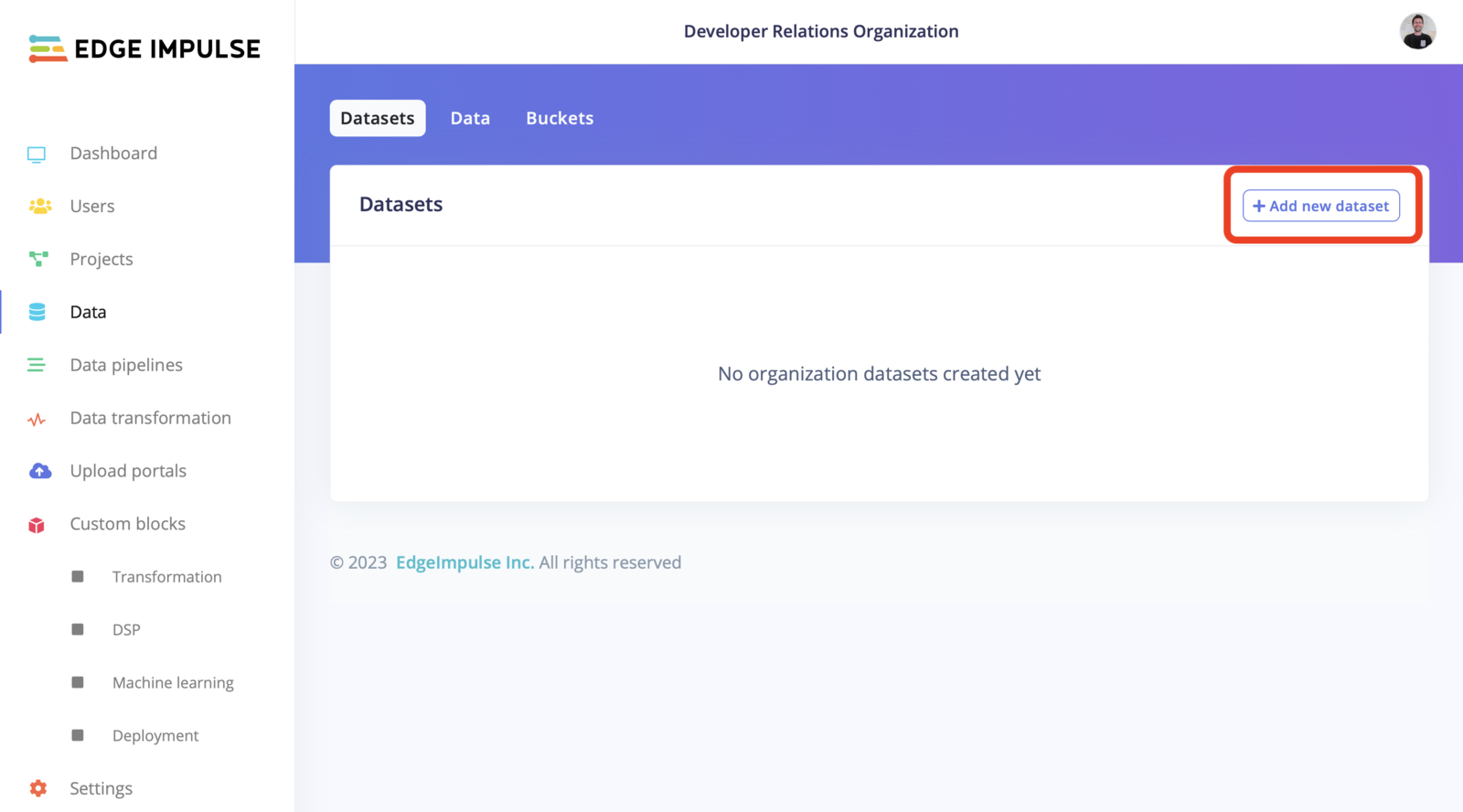
Once you successfully linked your storage bucket to your organization, head to the **Datasets** tab and click on **+ Add new dataset**:
The **default dataset structure** is a file-based one, no matter the directory structure:
For example:
```
images/
├── testing/
│ ├── 1.jpg
│ ├── 2.jpg
│ ├── 3.jpg
│ ...
│ └── 200.jpg
└── training/
├── 1.jpg
├── 2.jpg
├── 3.jpg
...
└── 800.jpg
```
or:
```
keywords/
├── french-accent/
│ ├── hello.wav
│ ├── yes.wav
│ ├── no.wav
├── greek-accent/
│ ├── hello.wav
│ ├── yes.wav
│ ├── no.wav
└── unlabeled/
├── 1.wav
├── 2.wav
├── 3.wav
...
└── 20.wav
```
*Note that you will be able to associate the labels of your data items from the file name or the directory name when importing your data in a project.*
The **clinical dataset structure** groups files into data items. It has three levels:
1. The dataset, a larger set of data items, grouped together.
2. The data item, which carries metadata and has files attached.
3. The data files themselves.
The grouping is defined by folder depth. With a depth of one, the folder `test` is a data item; with a depth of two, `test/abc` is. Set it to the unit you work with, usually a participant, a session, or a device.
That extra layer makes clinical datasets queryable: metadata attaches to the item, so you can ask for every item from a given participant or age band, and the dataset checklist can report how many items pass or fail validation.
See the [health reference design](/knowledge/guides/reference-designs/health-reference-design) tutorial for a deeper explanation.
### Create a new dataset
Once you successfully linked your storage bucket to your organization, head to the **Datasets** tab and click on **+ Add new dataset**:
 Fill out the following form:
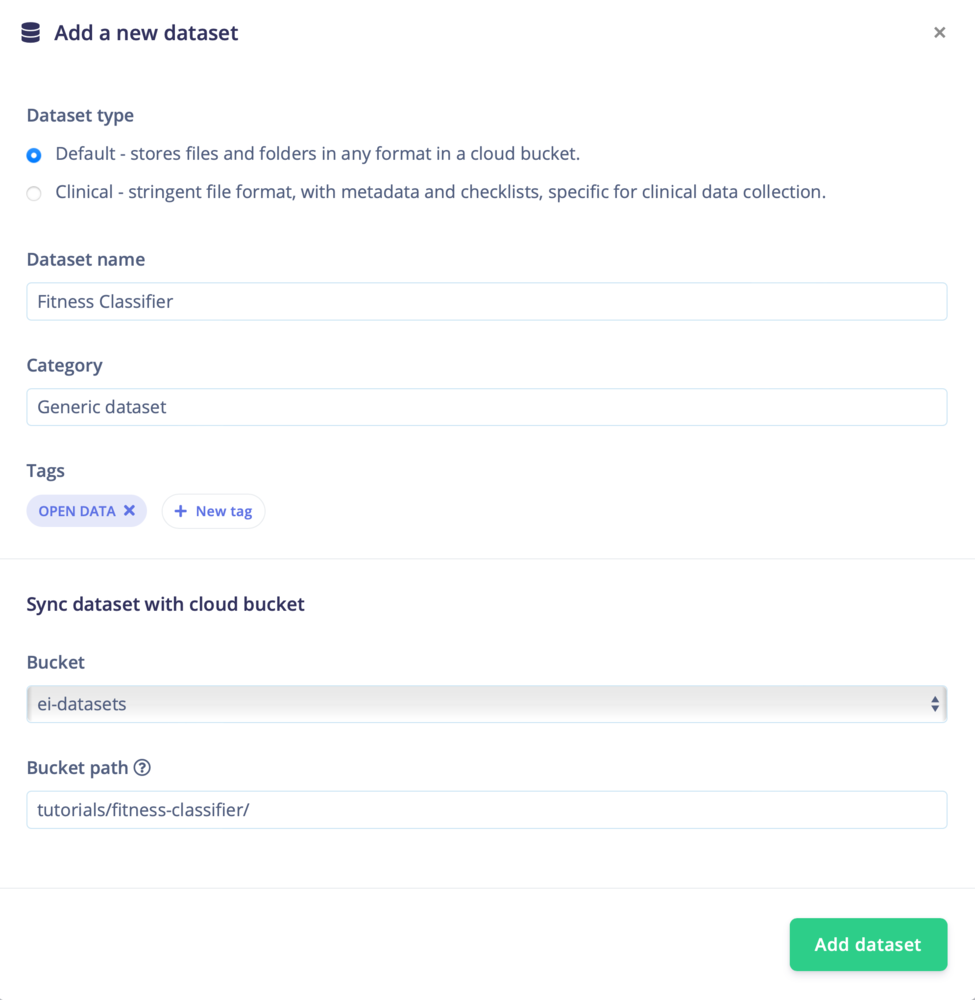 Click on **Create dataset**
## Data
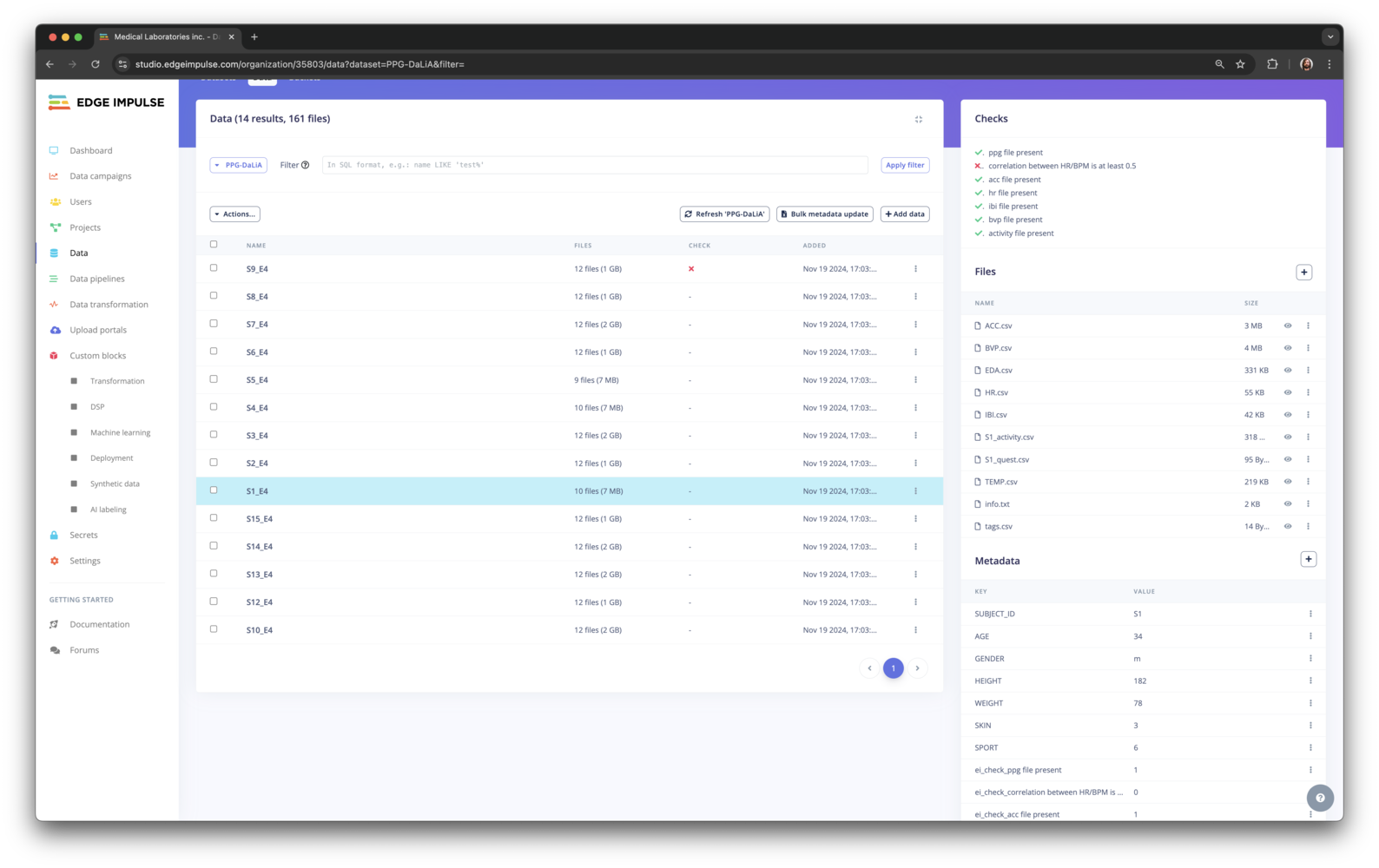
With your datasets imported, you can now navigate into your dataset, create folders, [query your dataset](/knowledge/guides/reference-designs/health-reference-design/querying-clinical-data), add data items and import your data to an Edge Impulse project.
##### Default view
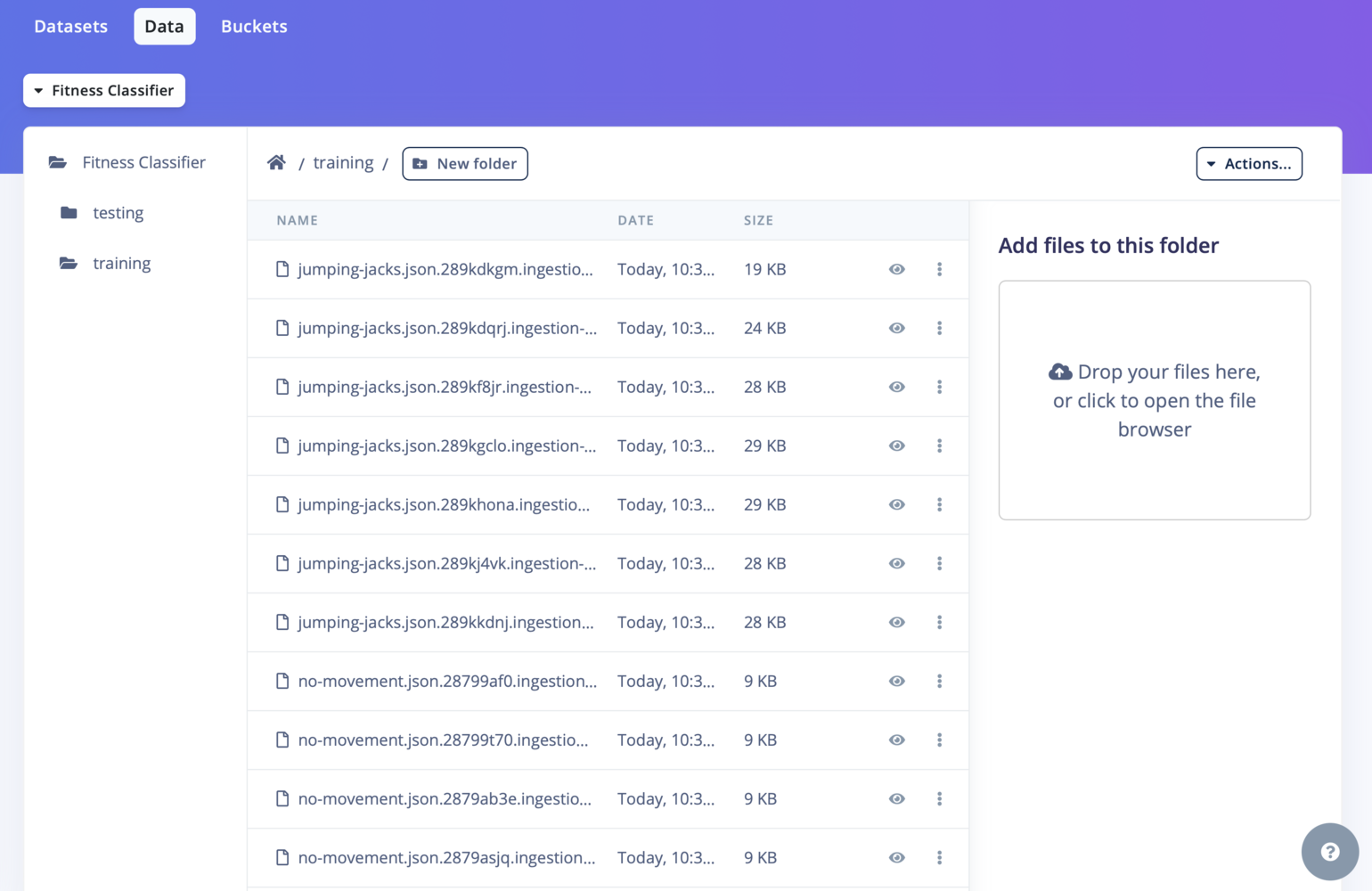
The default view lets you navigate in your bucket following the directory structure. You can create folders with the **+ New folder** button. To add data, drag and drop files and folders onto the right panel, and they upload to your bucket automatically.
Click on **Create dataset**
## Data
With your datasets imported, you can now navigate into your dataset, create folders, [query your dataset](/knowledge/guides/reference-designs/health-reference-design/querying-clinical-data), add data items and import your data to an Edge Impulse project.
##### Default view
The default view lets you navigate in your bucket following the directory structure. You can create folders with the **+ New folder** button. To add data, drag and drop files and folders onto the right panel, and they upload to your bucket automatically.
 ##### Clinical view
The clinical view is slightly different, see [synchronizing clinical data with a bucket](/knowledge/guides/reference-designs/health-reference-design/synchronizing-clinical-data) for more information. This view lets you easily [query your clinical dataset](/knowledge/guides/reference-designs/health-reference-design/querying-clinical-data) but to import data, you will need to set up an [upload portal](/studio/organizations/upload-portals) or upload them directly to your bucket.
*Tip: You can add two distinct datasets in Edge Impulse that point to the same bucket path, one generic and one clinical. This way you can leverage both the easy upload and the ability to query your datasets.*
##### Clinical view
The clinical view is slightly different, see [synchronizing clinical data with a bucket](/knowledge/guides/reference-designs/health-reference-design/synchronizing-clinical-data) for more information. This view lets you easily [query your clinical dataset](/knowledge/guides/reference-designs/health-reference-design/querying-clinical-data) but to import data, you will need to set up an [upload portal](/studio/organizations/upload-portals) or upload them directly to your bucket.
*Tip: You can add two distinct datasets in Edge Impulse that point to the same bucket path, one generic and one clinical. This way you can leverage both the easy upload and the ability to query your datasets.*
 ### Adding data to your project
Go to the **Actions...->Import data into a project**, select the project you wish to import to and click **Next, Configure how to label this data**:
### Adding data to your project
Go to the **Actions...->Import data into a project**, select the project you wish to import to and click **Next, Configure how to label this data**:
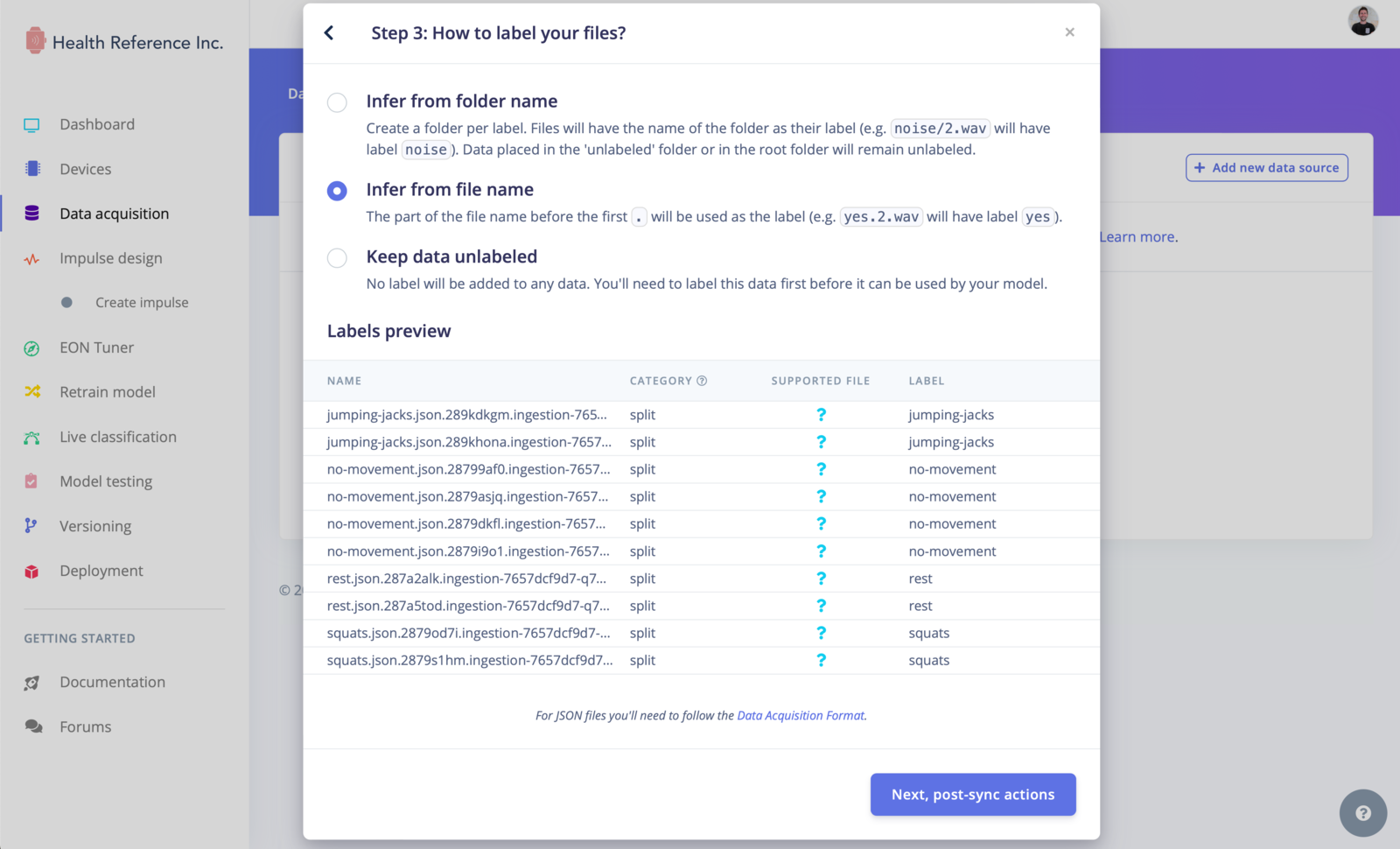 This will import the data into the project and optionally create a new label for each file in the dataset. This labeling step helps you keep track of different classes or categories within your data.
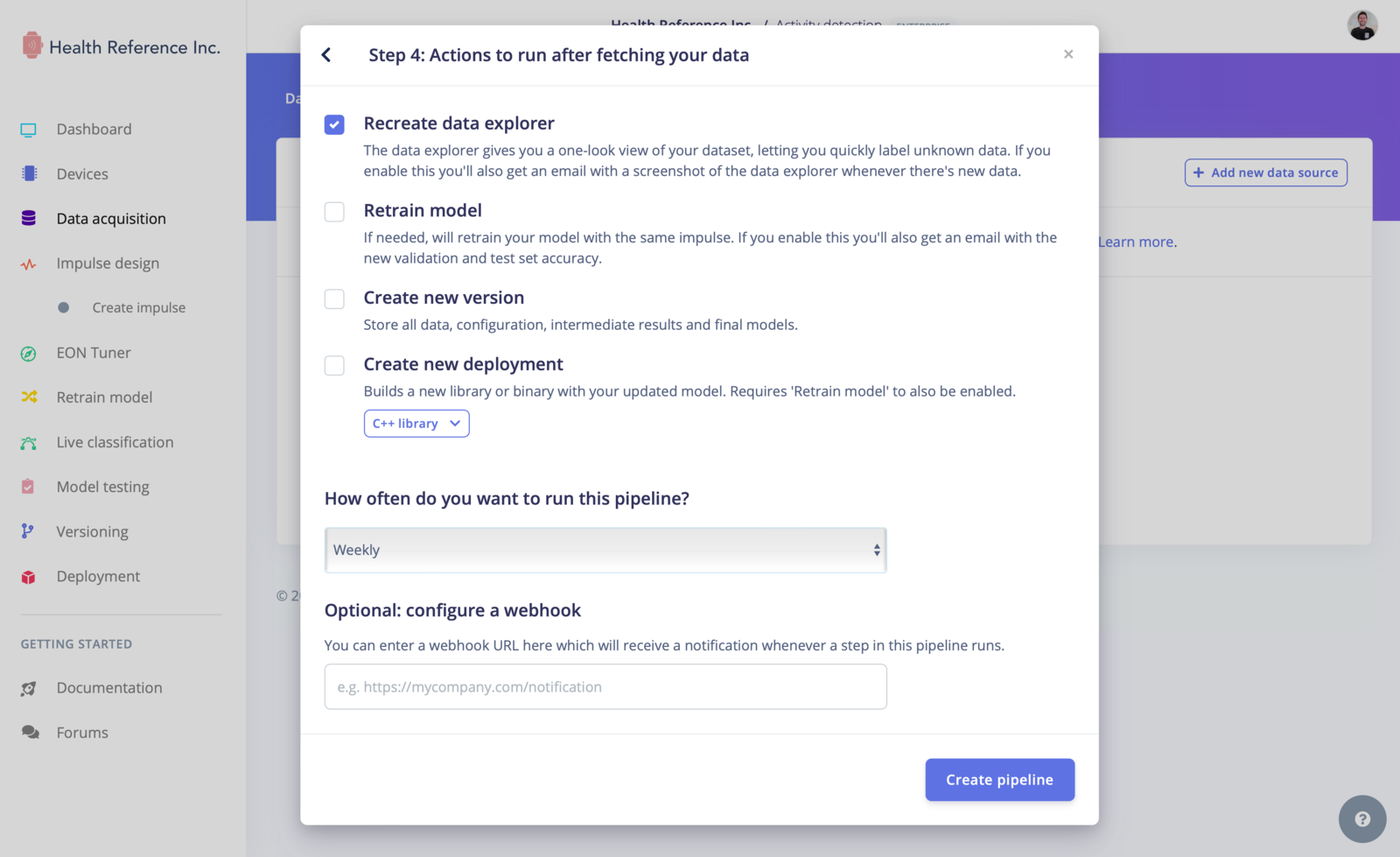
After importing the data into the project, in the **Next, post-sync actions** step, you can configure a [data pipeline](/studio/projects/data-acquisition/data-sources) to automatically retrieve and trigger actions in your project:
This will import the data into the project and optionally create a new label for each file in the dataset. This labeling step helps you keep track of different classes or categories within your data.
After importing the data into the project, in the **Next, post-sync actions** step, you can configure a [data pipeline](/studio/projects/data-acquisition/data-sources) to automatically retrieve and trigger actions in your project:
 ### Previewing data
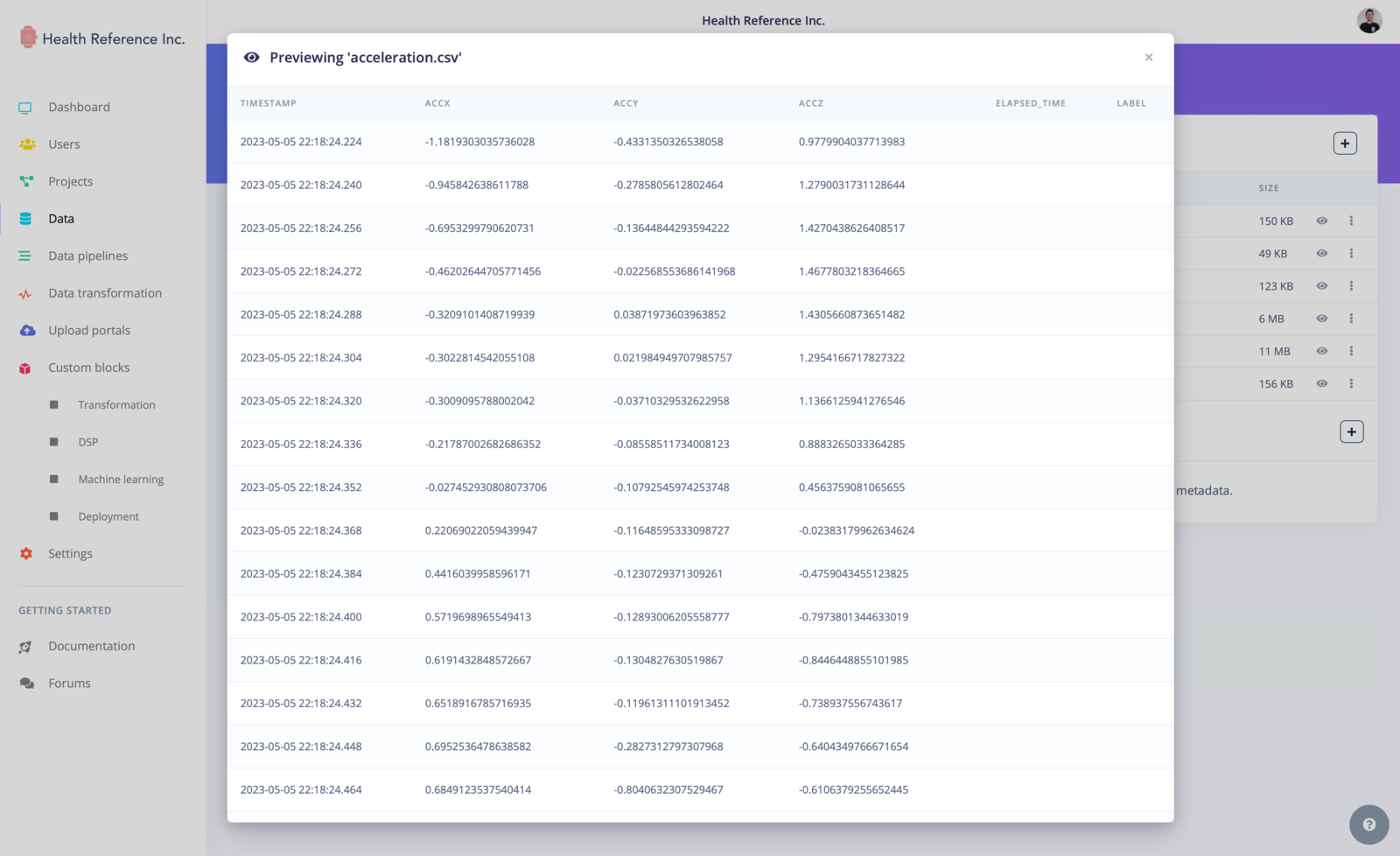
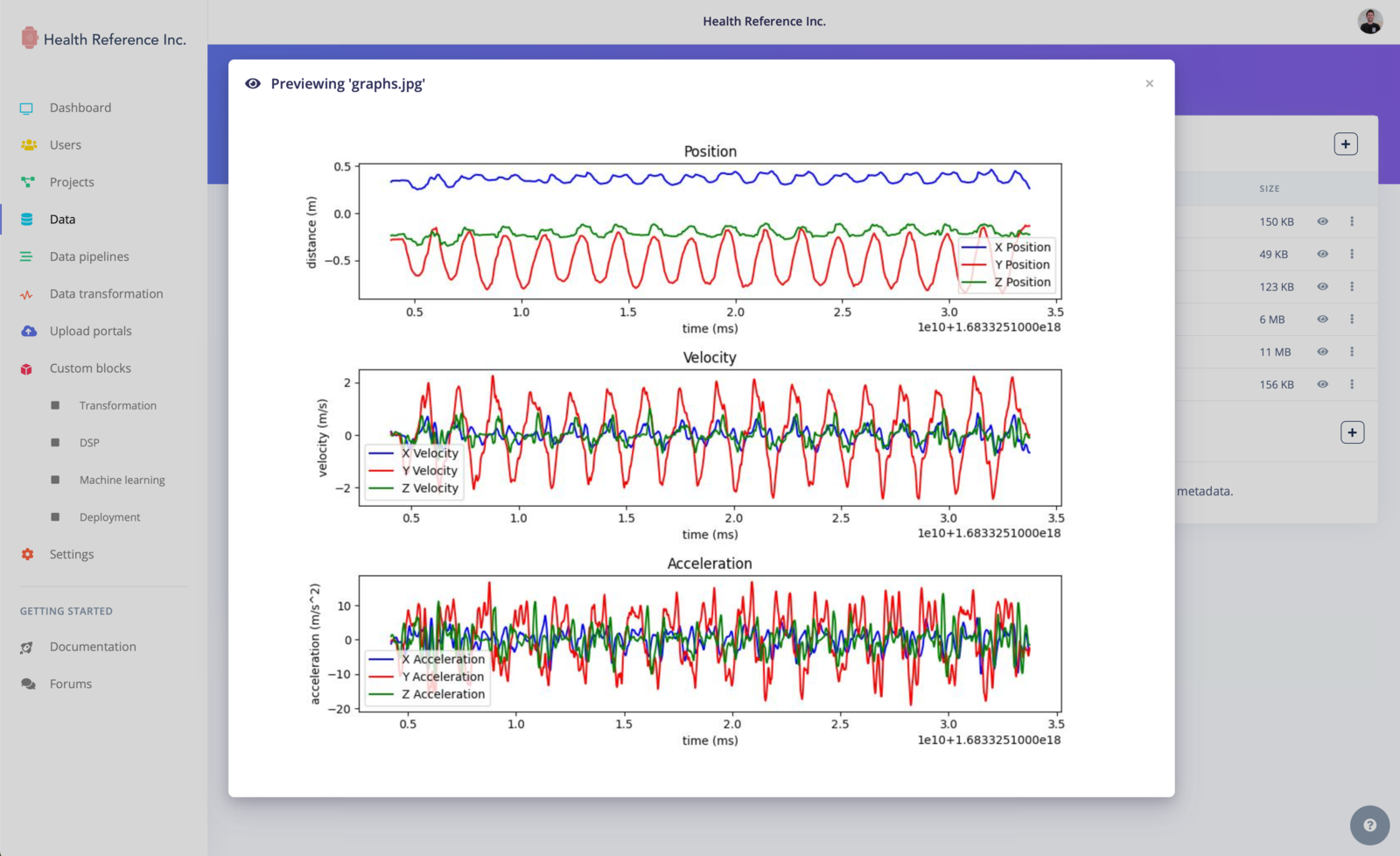
We also have added a data preview feature, allowing you to visualize certain types of data directly within the organization data tab.
Supported data types include tables (CSV/Parquet), images, PDFs, audio files (WAV/MP3), and text files (TXT/JSON). This feature gives you a quick overview of your data and helps ensure its integrity and correctness.
### Previewing data
We also have added a data preview feature, allowing you to visualize certain types of data directly within the organization data tab.
Supported data types include tables (CSV/Parquet), images, PDFs, audio files (WAV/MP3), and text files (TXT/JSON). This feature gives you a quick overview of your data and helps ensure its integrity and correctness.
 ## API reference
| Endpoint | Use |
| - | - |
| [Add a storage bucket](/apis/studio/organizationdata/add-a-storage-bucket) | Connect cloud storage to the organization |
| [Update storage bucket](/apis/studio/organizationdata/update-storage-bucket) | Change bucket credentials or configuration |
| [Update dataset](/apis/studio/organizationdata/update-dataset) | Rename a dataset or change its bucket path |
| [Update data metadata](/apis/studio/organizationdata/update-data-metadata) | Set the metadata a data item is queried by |
| [Delete data](/apis/studio/organizationdata/delete-data) | Remove a data item |
## Additional resources
* [Cloud data storage](/studio/organizations/data/cloud-data-storage) for connecting a bucket
* [Upload portals](/studio/organizations/upload-portals) for letting external contributors add data
* [Data pipelines](/studio/organizations/data-pipelines) for transforming datasets on a schedule
* [Data campaigns](/studio/organizations/data-campaigns) for tracking how a dataset grows
* [Health reference design](/knowledge/guides/reference-designs/health-reference-design) for an end-to-end clinical workflow
Any questions, or interested in the enterprise version of Edge Impulse? [Contact us](https://edgeimpulse.com/contact) for more information.
## API reference
| Endpoint | Use |
| - | - |
| [Add a storage bucket](/apis/studio/organizationdata/add-a-storage-bucket) | Connect cloud storage to the organization |
| [Update storage bucket](/apis/studio/organizationdata/update-storage-bucket) | Change bucket credentials or configuration |
| [Update dataset](/apis/studio/organizationdata/update-dataset) | Rename a dataset or change its bucket path |
| [Update data metadata](/apis/studio/organizationdata/update-data-metadata) | Set the metadata a data item is queried by |
| [Delete data](/apis/studio/organizationdata/delete-data) | Remove a data item |
## Additional resources
* [Cloud data storage](/studio/organizations/data/cloud-data-storage) for connecting a bucket
* [Upload portals](/studio/organizations/upload-portals) for letting external contributors add data
* [Data pipelines](/studio/organizations/data-pipelines) for transforming datasets on a schedule
* [Data campaigns](/studio/organizations/data-campaigns) for tracking how a dataset grows
* [Health reference design](/knowledge/guides/reference-designs/health-reference-design) for an end-to-end clinical workflow
Any questions, or interested in the enterprise version of Edge Impulse? [Contact us](https://edgeimpulse.com/contact) for more information.