> ## Documentation Index
> Fetch the complete documentation index at: https://docs.edgeimpulse.com/llms.txt
> Use this file to discover all available pages before exploring further.
# Data pipelines
> Combine transformation blocks into scheduled pipelines that process organization data and trigger notifications or webhooks.
**Only available on the Enterprise plan**
This feature is only available on the Enterprise plan. Review our [plans and pricing](https://edgeimpulse.com/pricing) or sign up for our free [expert-led trial](https://edgeimpulse.com/expert-led-trial) today.
Data pipelines allow you to stack several transformation blocks similar to the [Data sources pipelines](/studio/projects/data-acquisition/data-sources). They can be used in [standalone mode](#how-a-pipeline-works) (just execute several transformation jobs in a pipeline), to feed a dataset or to feed a project.
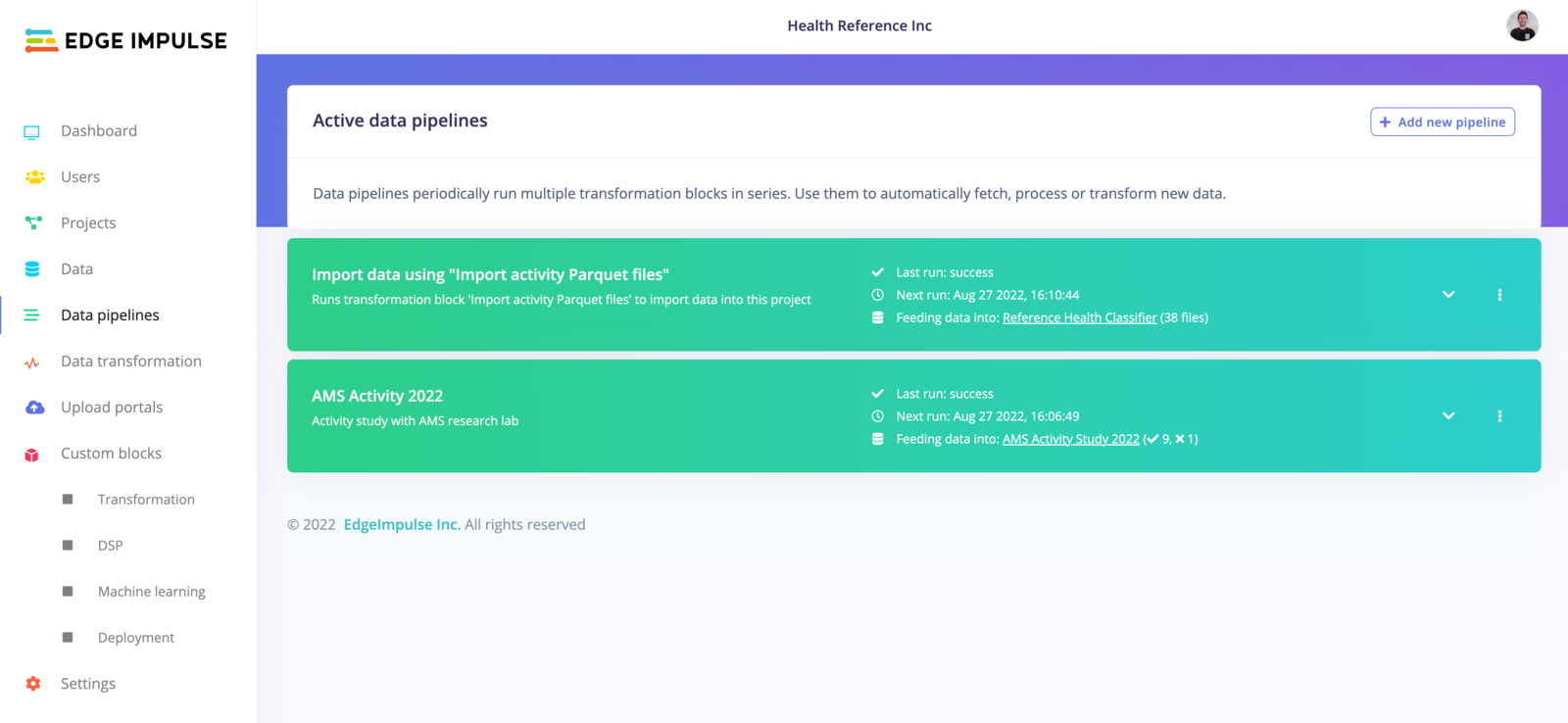 The examples in the screenshots below shows how to create and use a pipeline to create the 'AMS Activity 2022' dataset.
## How a pipeline works
A pipeline is an ordered list of steps. Each step runs a [transformation block](/studio/organizations/transformation-blocks) as a job, in sequence, so a step operates on what the previous steps produced rather than on the original input.
Each step is configured as JSON copied from the block. It sets the block to run, a filter for the data items, the block's parameters, and how many transformations run in parallel.
A pipeline can send its output to an organization dataset or to a project. It can also run standalone, where the steps run their jobs without writing output to either. When it feeds a project, the step also sets which category the data lands in (training, validation, testing, or an automatic split) and which label it gets, keeping a project's dataset current without manual uploads.
Each run records the status of every step. If the pipeline writes to a dataset, the run also shows how many items the dataset had before and after, and how many passed or failed the dataset checklist. Check these numbers to confirm that a scheduled run did its job.
## Create a pipeline
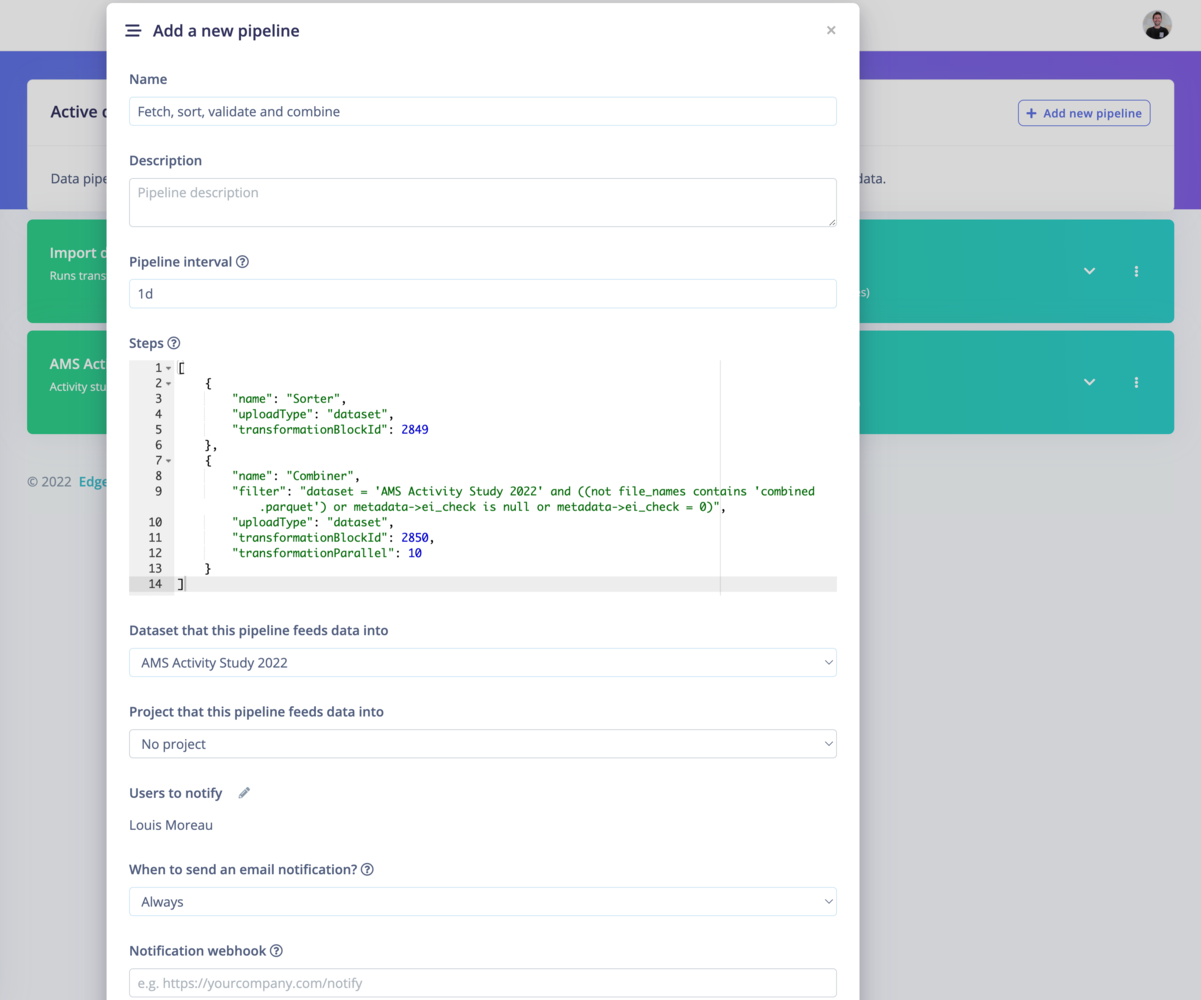
To create a new pipeline, click on '**+Add a new pipeline**:
The examples in the screenshots below shows how to create and use a pipeline to create the 'AMS Activity 2022' dataset.
## How a pipeline works
A pipeline is an ordered list of steps. Each step runs a [transformation block](/studio/organizations/transformation-blocks) as a job, in sequence, so a step operates on what the previous steps produced rather than on the original input.
Each step is configured as JSON copied from the block. It sets the block to run, a filter for the data items, the block's parameters, and how many transformations run in parallel.
A pipeline can send its output to an organization dataset or to a project. It can also run standalone, where the steps run their jobs without writing output to either. When it feeds a project, the step also sets which category the data lands in (training, validation, testing, or an automatic split) and which label it gets, keeping a project's dataset current without manual uploads.
Each run records the status of every step. If the pipeline writes to a dataset, the run also shows how many items the dataset had before and after, and how many passed or failed the dataset checklist. Check these numbers to confirm that a scheduled run did its job.
## Create a pipeline
To create a new pipeline, click on '**+Add a new pipeline**:
 ### Get the steps from your transformation blocks
In your organization workspace, go to **Custom blocks -> Transformation** and select **Run job** on the job you want to add.
### Get the steps from your transformation blocks
In your organization workspace, go to **Custom blocks -> Transformation** and select **Run job** on the job you want to add.
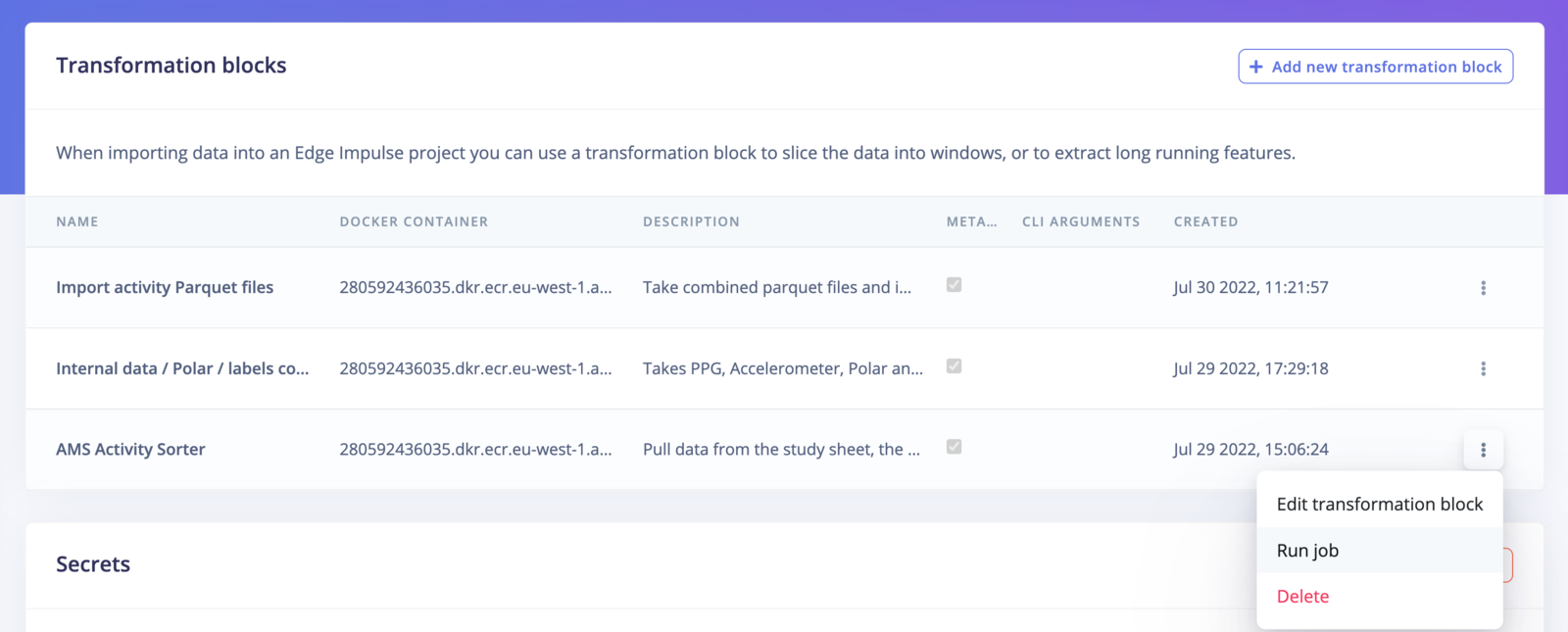 Select **Copy as pipeline step** and paste it to the configuration json file.
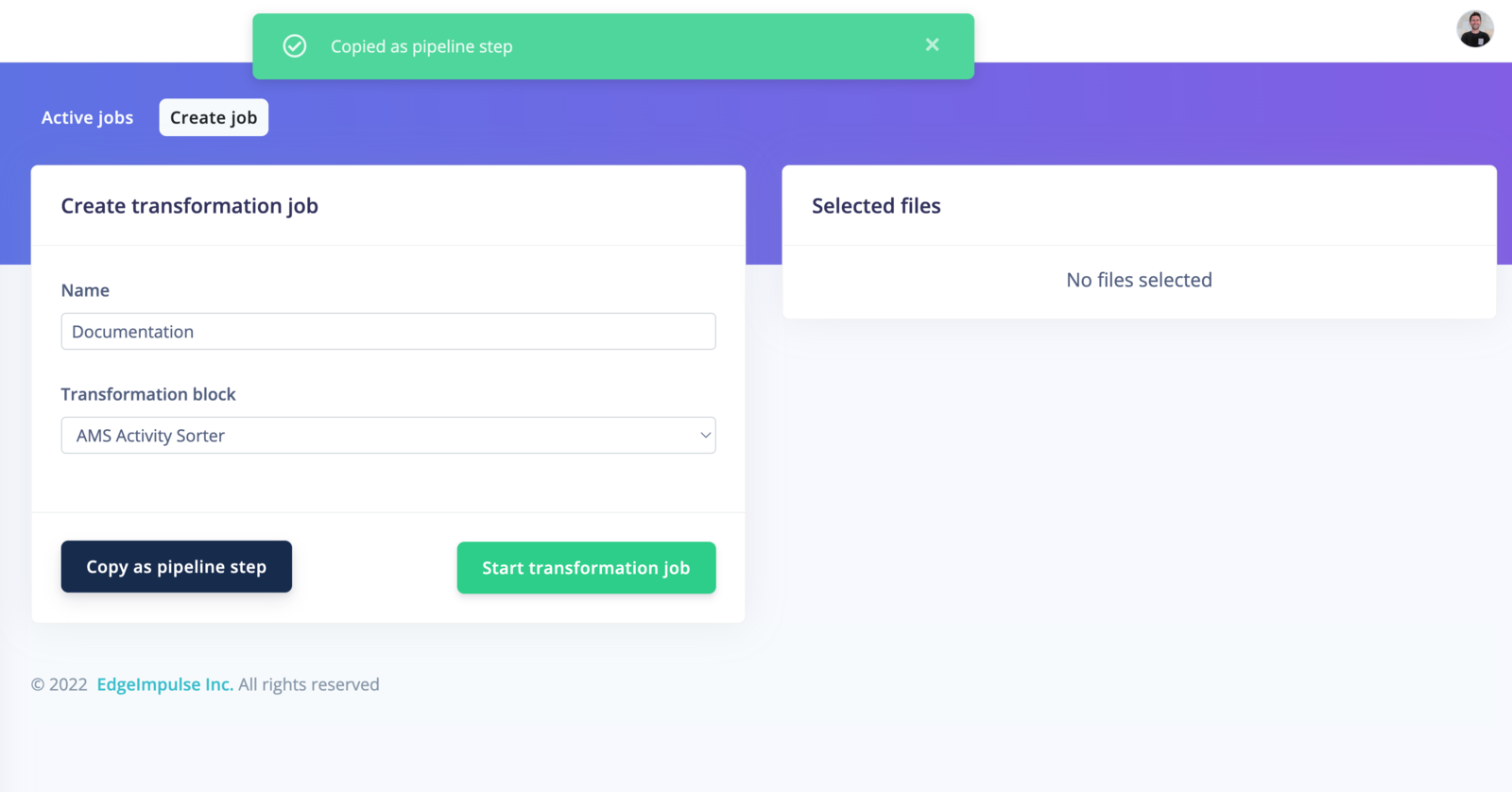 You can then paste the copied step directly to the respected field.
Below, you have an option to feed the data to either a **organisation dataset** or an **Edge Impulse project**
### Schedule and notify
By default, your pipeline will run every day. To schedule your pipeline jobs, click on the `⋮` button and select **Edit pipeline**.
You can then paste the copied step directly to the respected field.
Below, you have an option to feed the data to either a **organisation dataset** or an **Edge Impulse project**
### Schedule and notify
By default, your pipeline will run every day. To schedule your pipeline jobs, click on the `⋮` button and select **Edit pipeline**.
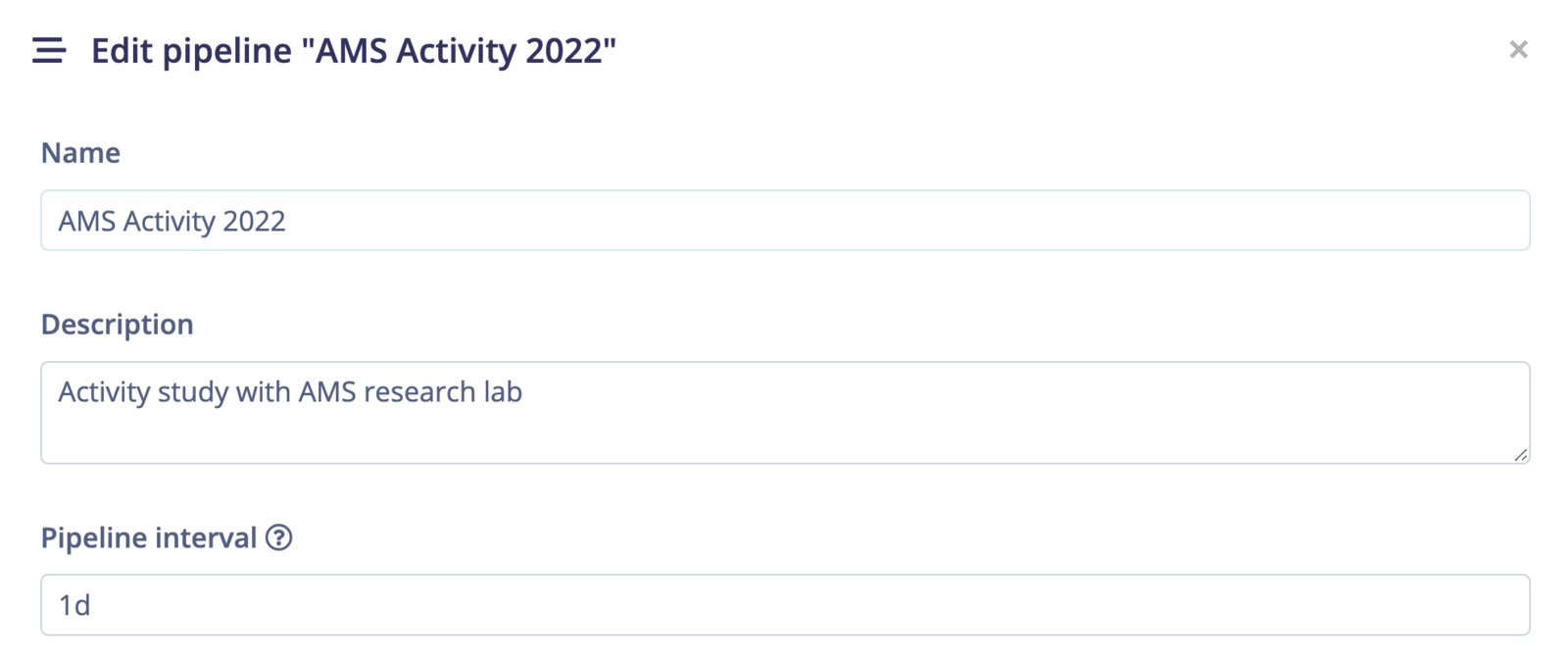 The interval is a short duration string: `15m`, `2h`, or `1d`. Match it to how often new data arrives.
Once the pipeline finishes, it can email the **Users to notify** after every run, only when a run brought in new data, or never.
## Run the pipeline
Once your pipeline is set, you can run it directly from the UI, from external sources or by scheduling the task.
### Run the pipeline from the UI
To run your pipeline from Edge Impulse studio, click on the `⋮` button and select **Run pipeline now**.
### Run the pipeline from code
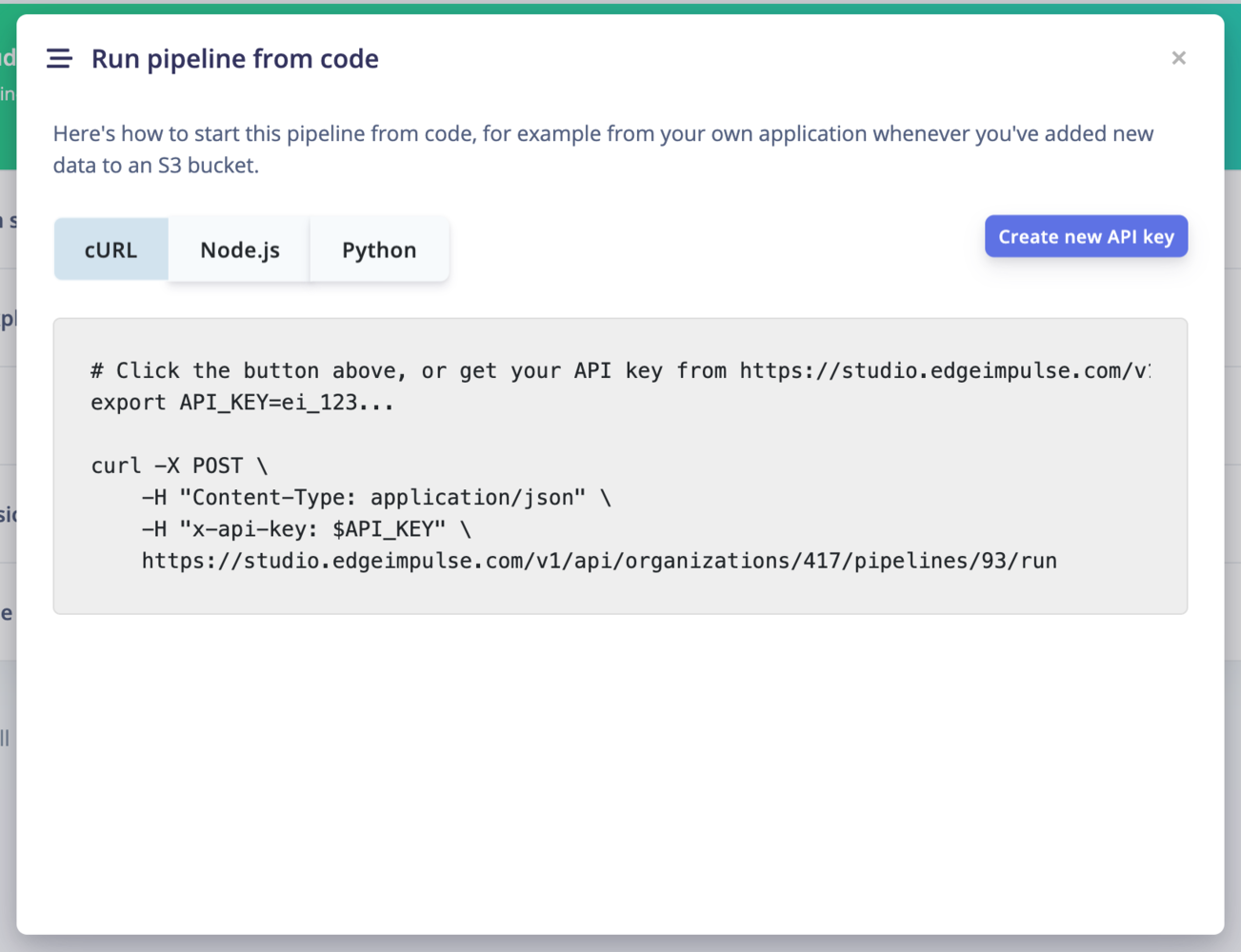
To run your pipeline from Edge Impulse studio, click on the `⋮` button and select **Run pipeline from code**. This will display an overlay with `curl`, `Node.js` and `Python` code samples.
You will need to create an **API key** to run the pipeline from code.
The interval is a short duration string: `15m`, `2h`, or `1d`. Match it to how often new data arrives.
Once the pipeline finishes, it can email the **Users to notify** after every run, only when a run brought in new data, or never.
## Run the pipeline
Once your pipeline is set, you can run it directly from the UI, from external sources or by scheduling the task.
### Run the pipeline from the UI
To run your pipeline from Edge Impulse studio, click on the `⋮` button and select **Run pipeline now**.
### Run the pipeline from code
To run your pipeline from Edge Impulse studio, click on the `⋮` button and select **Run pipeline from code**. This will display an overlay with `curl`, `Node.js` and `Python` code samples.
You will need to create an **API key** to run the pipeline from code.
 ### Webhooks
You can also create a **webhook** to call a URL when the pipeline has run. It will run a POST request containing the following information:
```
{
"organizationId":XX,
"pipelineId":XX,
"pipelineName":"Fetch, sort, validate and combine",
"projectId":XXXXX,
"success":true,
"newItems":0,
"newChecklistOK":0,
"newChecklistFail":0
}
```
### Webhooks
You can also create a **webhook** to call a URL when the pipeline has run. It will run a POST request containing the following information:
```
{
"organizationId":XX,
"pipelineId":XX,
"pipelineName":"Fetch, sort, validate and combine",
"projectId":XXXXX,
"success":true,
"newItems":0,
"newChecklistOK":0,
"newChecklistFail":0
}
```
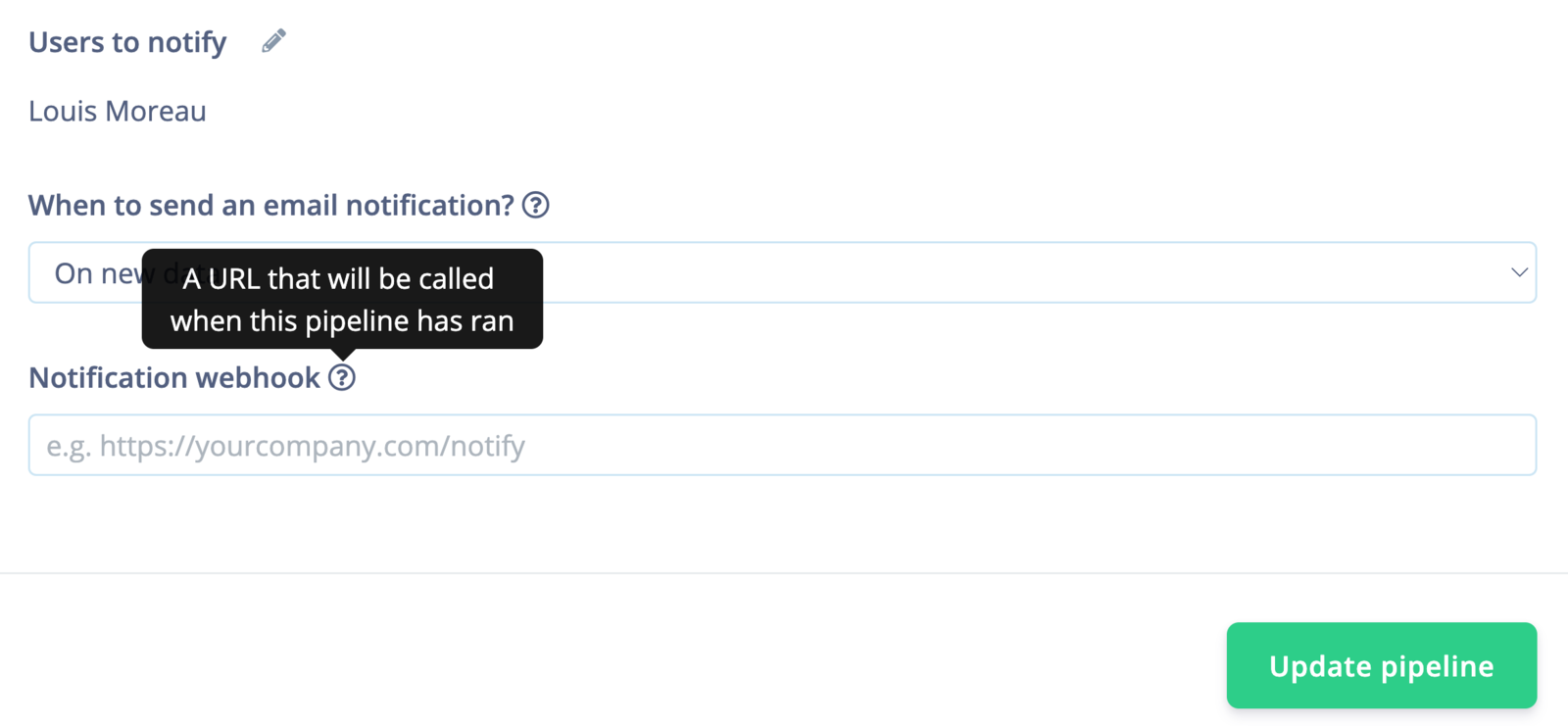 `success` reports whether the run completed and `newItems` whether it changed anything. For checklist-backed datasets, `newChecklistOK` and `newChecklistFail` report how many new items passed validation.
## Managing pipelines programmatically
| Task | Endpoint |
| - | - |
| List the pipelines in an organization | [List pipelines](/apis/studio/organizationpipelines/list-pipelines) |
| Create a pipeline and its steps | [Create pipeline](/apis/studio/organizationpipelines/create-pipeline) |
| Read a pipeline, including its current and last run | [Get pipeline](/apis/studio/organizationpipelines/get-pipeline) |
| Change the steps, schedule, or notification settings | [Update pipeline](/apis/studio/organizationpipelines/update-pipeline) |
| Trigger a run outside the schedule | [Run pipeline](/apis/studio/organizationpipelines/run-pipeline) |
| Stop a run that is in progress | [Stop a running pipeline](/apis/studio/organizationpipelines/stop-a-running-pipeline) |
## Additional resources
* [Transformation blocks](/studio/organizations/transformation-blocks)
* [Organization data](/studio/organizations/data)
* [Data campaigns](/studio/organizations/data-campaigns)
* [Data sources](/studio/projects/data-acquisition/data-sources)
`success` reports whether the run completed and `newItems` whether it changed anything. For checklist-backed datasets, `newChecklistOK` and `newChecklistFail` report how many new items passed validation.
## Managing pipelines programmatically
| Task | Endpoint |
| - | - |
| List the pipelines in an organization | [List pipelines](/apis/studio/organizationpipelines/list-pipelines) |
| Create a pipeline and its steps | [Create pipeline](/apis/studio/organizationpipelines/create-pipeline) |
| Read a pipeline, including its current and last run | [Get pipeline](/apis/studio/organizationpipelines/get-pipeline) |
| Change the steps, schedule, or notification settings | [Update pipeline](/apis/studio/organizationpipelines/update-pipeline) |
| Trigger a run outside the schedule | [Run pipeline](/apis/studio/organizationpipelines/run-pipeline) |
| Stop a run that is in progress | [Stop a running pipeline](/apis/studio/organizationpipelines/stop-a-running-pipeline) |
## Additional resources
* [Transformation blocks](/studio/organizations/transformation-blocks)
* [Organization data](/studio/organizations/data)
* [Data campaigns](/studio/organizations/data-campaigns)
* [Data sources](/studio/projects/data-acquisition/data-sources)